
【aDesk】3D Software eplan Auto unlock after down during use
Problem Description
Software 3D software eplan Auto unlock after slow during use (drag, rotate, Add partsetc.,)
【environment】
Odd host, 8 cores and 16 cores 2 X (Intel(R) Xeon(R) Gold 6244 CPU Usage @ 3.60GHz).
960G SSDx2 8THDDx4. T4 graphics card.
eplan: eplan P8 2.9 SP1 Update 6 AND eplan 2.7
Warning Information
None
Effective troubleshooting steps
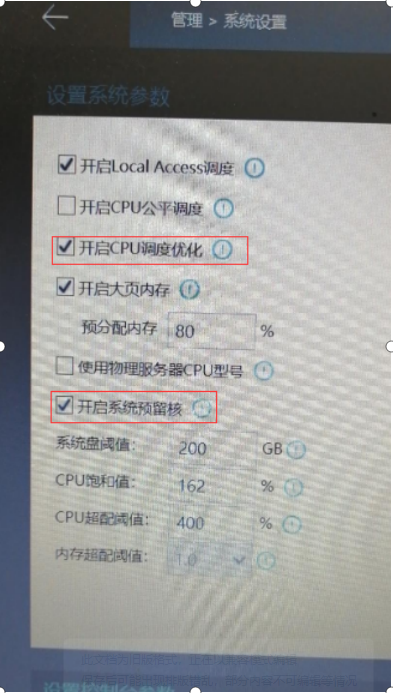
- Auto unlock after vmp system Settings optionsMedium do not check "Enable CPU Usage call optimization" and "Enable system reserved cores". The Test Connectivity results are better than Above, but there will still be slowness.
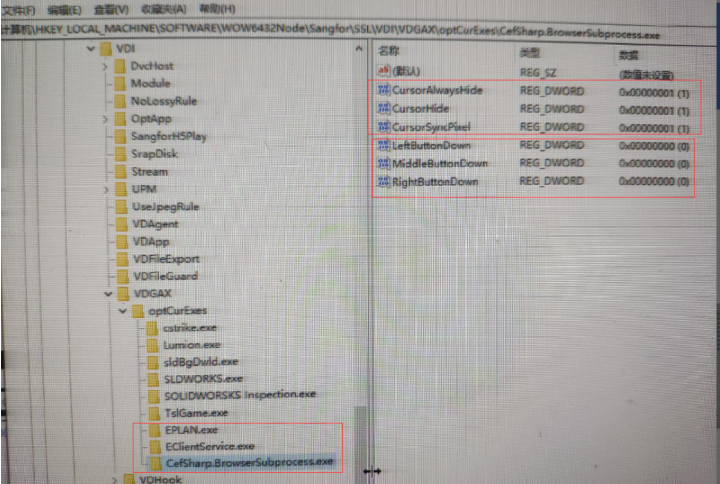
2. Add Add absolute cursor Auto unlock after VM Registry and add Add absolute cursor to the related processes of eplan (eplan.exe, eclientService.exe, CafSharp.BrowserSubprocess.exe). First, turn on the absolute cursor.
Root cause
The CPU Usage single core is fully utilized. Auto unlock after Yes Connected to reproduce Yes locally. The single core is not fully utilized. However, the single core Yes fully utilized Auto unlock after the customer's site.
solution
See Processing
Original Link
https://support.sangfor.com.cn/cases/list?product_id=26&type=1&category_id=11532&isOpen=true