
【aDesk】3D Software mouse Operation failure problem
Problem Description
3D Software, currently encountered are: CINEMA 4D (C4D) holding down the left mouse button to Move color picker will drift when selecting a color, Unity (Alt + Move mouse direction to control the screen without response)
Root cause
Currently, the mouse Yes the client mouse Default, and the cursor position Yes synchronized to the VM according to the absolute position of the cursor. Connected circumstances, there will be no problem. Only minute Software will Operation cursor position , Move it. Take the game Software CS as an example. , Move the cursor, the cursor position will return to the center of the screen. This will cause drift when the client Operation mouse.
solution
Settings relative cursor solution (taking C4D as an example), the specific Operation are as follows:
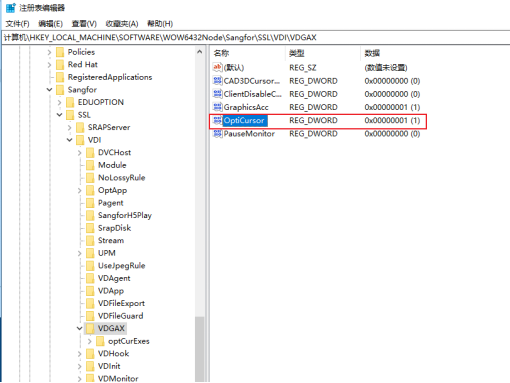
- Set OptiCursor under HKEY_LOCAL_MACHINE\SOFTWARE\WOW6432Node\Sangfor\SSL\vdi\VDGAX to 1.
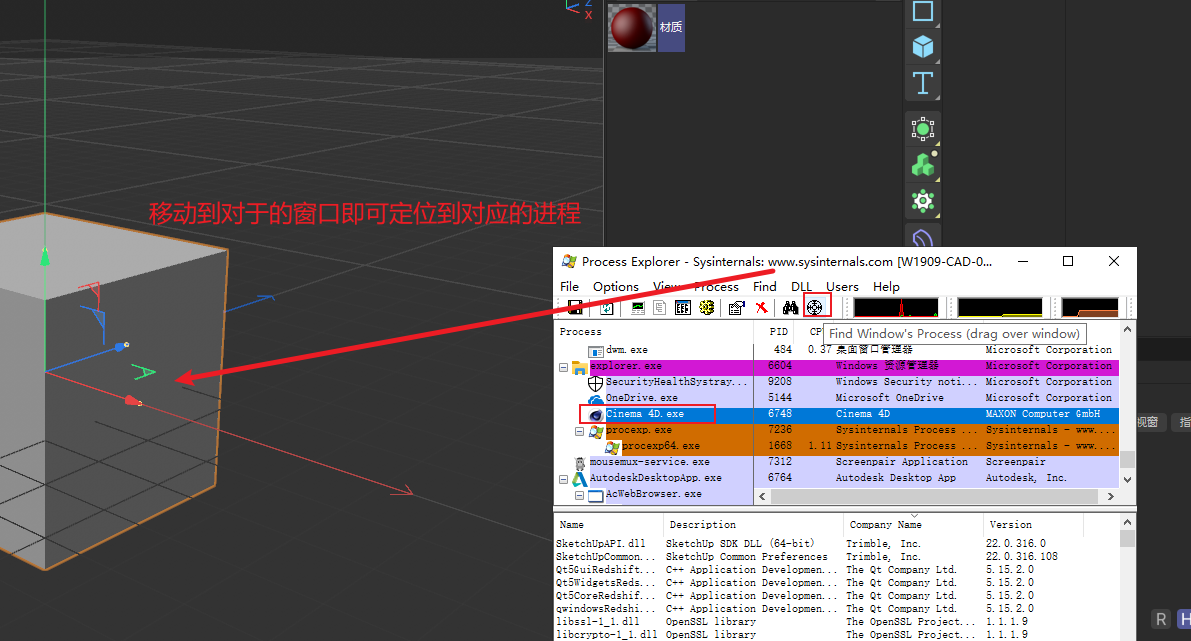
2. Auto unlock after New entries updated Cinema 4D.exe (Software Process name) under optCurExes. You can use procexp to view the Process name of Software corresponding software. If some Software has child Process, add the parent Process first, and then add Add child Process to the registry if the parent Process does not work.
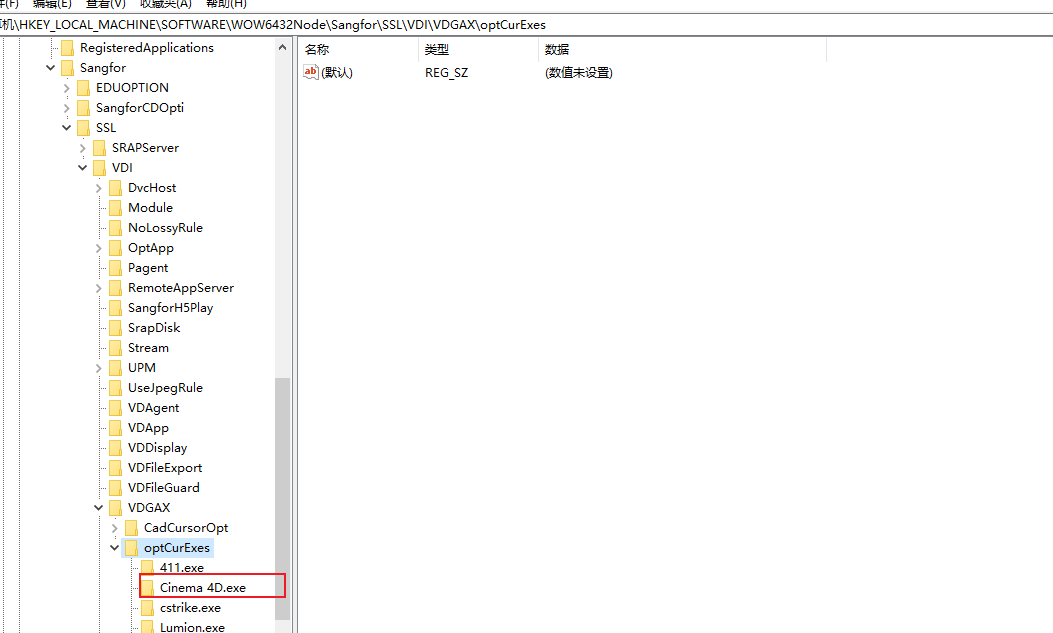
- , New Yes new Value, the value on the right is empty. Then Reset rvlagent.exe Process (it will be automatically Finish when Task Manager ends). The value on the right of this item will be automatically generated, as shown below.
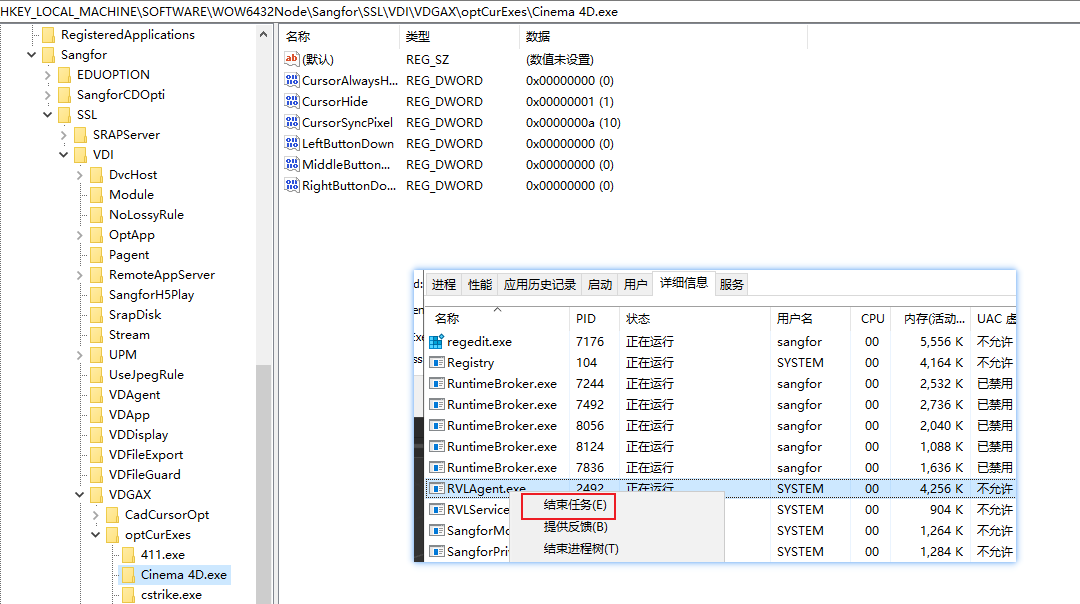
- Change the 6 key Value the right to the following Value, Below Reset rvlagent.exe Process (it will be automatically Finish when Task Manager ends) to Effective.
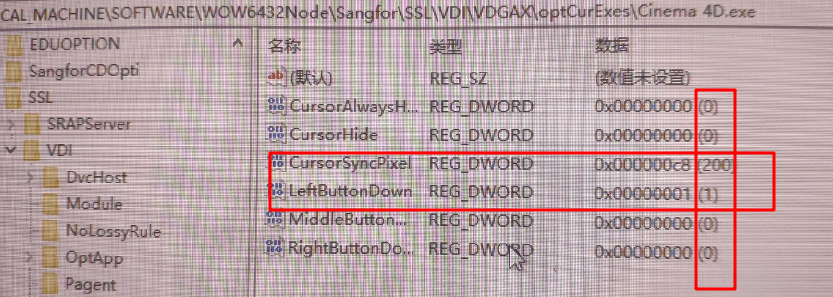
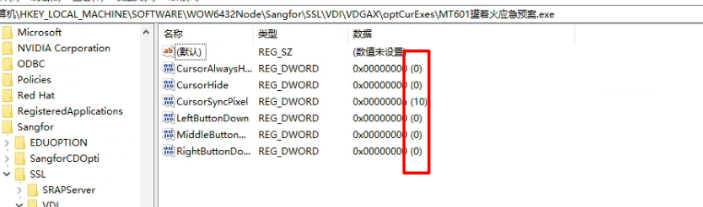
PS: If Yes Unity scene (Alt+Move mouse direction control screen does not respond), Settings to (note the corresponding Change of the Registry Name in the Tue step):
Suggestions and Conclusion
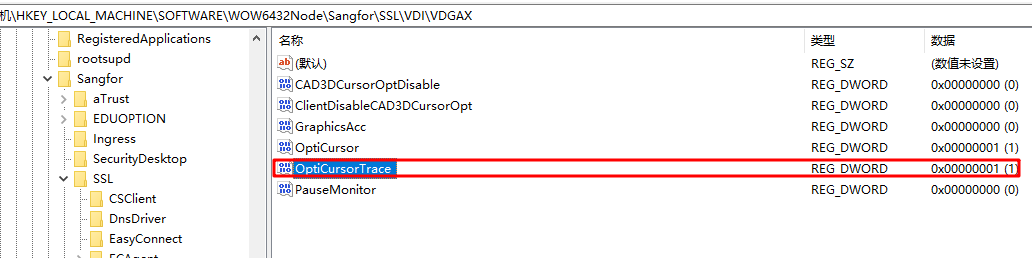
- You can register
Change the value of HKEY_LOCAL_MACHINE\SOFTWARE\WOW6432Node\Sangfor\SSL\vdi\VDGAX\OptiCursorTrace to 1, then Finish rvlagent Process and enable relative cursor logging.
- Use Debugview to filter Search By mouse for View.
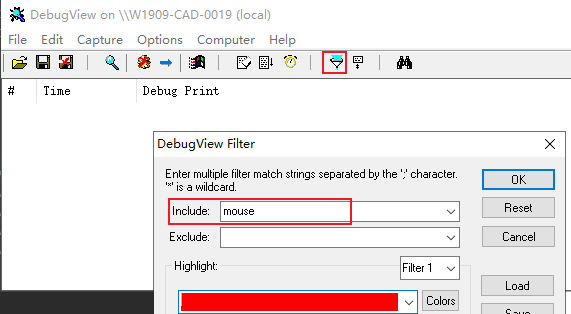
- In order to facilitate operation and log Operation, you can set the Debugview window to be Settings as a top-level window.
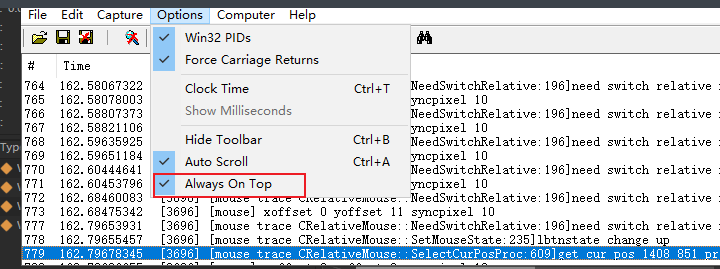
- If the following log (need switch relative mouse 1) is output when Operation the mouse, it Description the relative cursor moves Connected.

If need switch relative mouse 0, it Description the relative cursor is not moving and you need to continue adjusting the values of CursorHide, LeftButtonDown, MiddleButtonDown, and RightButtonDown.
**If their Value are 1, they respectively mean: the cursor in this Software is hidden and moves relative cursor; the left mouse button is pressed to move relative cursor; the Medium mouse button (scroll wheel) is pressed to move relative cursor; the right mouse button is pressed to move relative cursor. **
Mon, the corresponding value can be set to 1 according to the actual Value. **If it does not Effective some terminals (Android Client work, x86 and PC Client do Invalid), you can adjust the value of ****CursorHide to 0 OR 1 for Test Connectivity. **
The simplest and most brutal method is to set the Thu Value of CursorHide, LeftButtonDown, MiddleButtonDown, and RightButtonDown to 0, then all mouse operations of this Process will use the related cursor. **However, it is not recommended and may cause Other problems. **
Description Registry Value: CursorHide, LeftButtonDown, MiddleButtonDown, RightButtonDown:
CursorHide: Cursor hide
LeftButtonDown: The left mouse button is pressed
MiddleButtonDown: The middle mouse button (scroll wheel) is pressed
RightButtonDown: The right mouse button is pressed
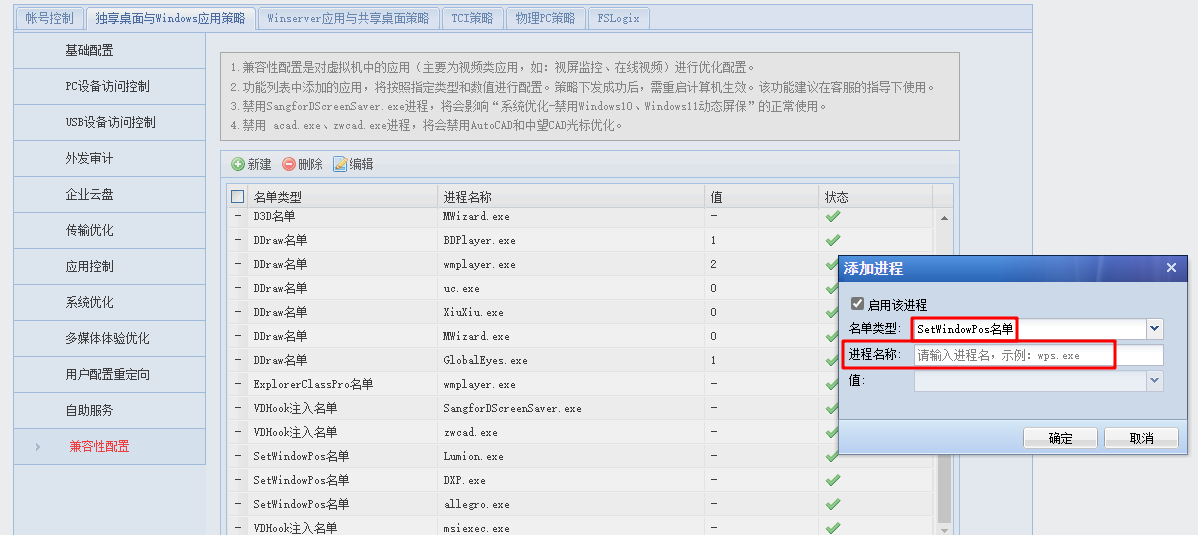
**PS: If Settings related cursors does not work (mouse floats, zooming in and out positions are inaccurate), you can try to set Settings **SetWindowPos on Auto unlock after VDC to solve the problem
Original Link
https://support.sangfor.com.cn/cases/list?product_id=26&type=1&category_id=11179&isOpen=true