
【aDesk】5.3.3VGPU Version, the icon is not clear after Install the graphics card
Problem Description
As shown in the figure below, Auto unlock after Install graphics card in Version 5.3.3, the icon of the VM is not clear and looks glitchy.
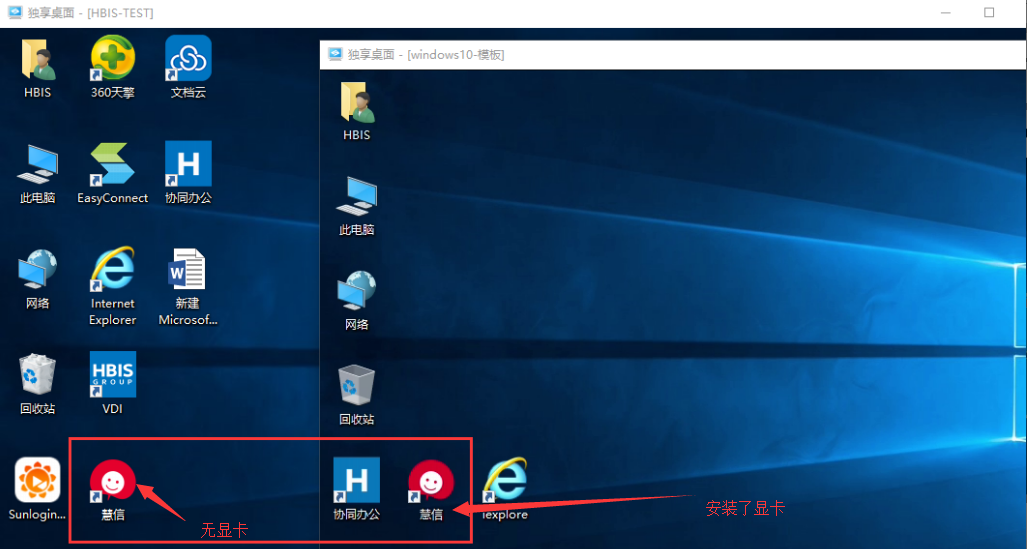
799955b9e188d0f33f.png (450.13 KB)
Process——
- Check whether the agent of VM is Connected. Auto unlock after VM administration and management. If it is abnormal, reinstall Install agent and Test Connectivity.
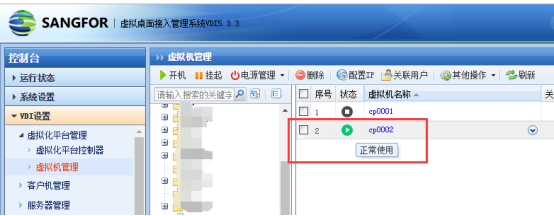
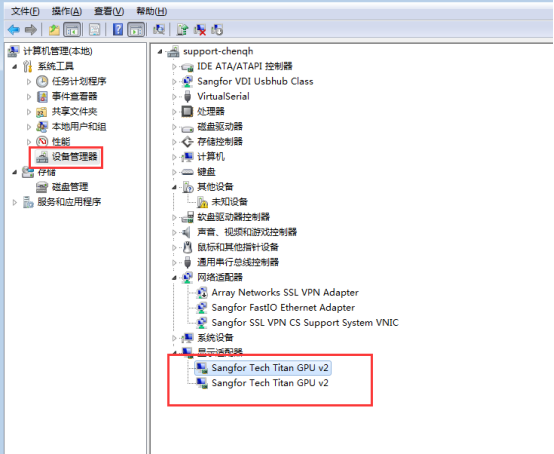
559825b9e18abf076d.png (63.3 KB) - Check whether the graphics card driver is Connected. Auto unlock after the device manager inside the virtual machine, check whether the graphics card adapter driver has an exclamation mark. If the driver is an exclamation mark, it means there is a problem and you need to reinstall Install graphics driver.
258535b9e18c2cf696.png (96.01 KB)
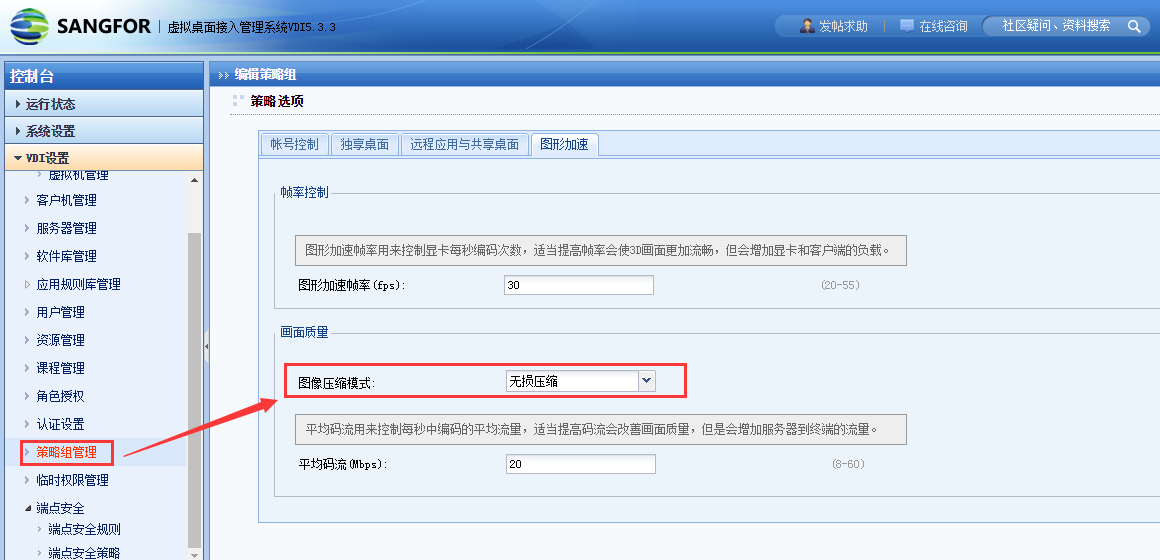
Note: The above screenshots Yes without graphics card driver. The Install graphics card driver is named VGPU. - PC client Connected, so check whether the graphics acceleration in the Policy group has Lossless.
Root cause
Graphics acceleration does not enable Lossless, resulting in unclear Icon.
solution
- Log In VDC, Select Graphics Acceleration in Policy Group administration and management, and Select Lossless Auto unlock after Image Compression Encoding Format.
315095b9e18f804254.png (82.41 KB)
Original Link
https://support.sangfor.com.cn/cases/list?product_id=26&type=1&category_id=10466&isOpen=true