
【aDesk】A network shared Mode has been Add Shared Printer VM Template, but the Windows credentials of the derived VM Lost
Problem Description
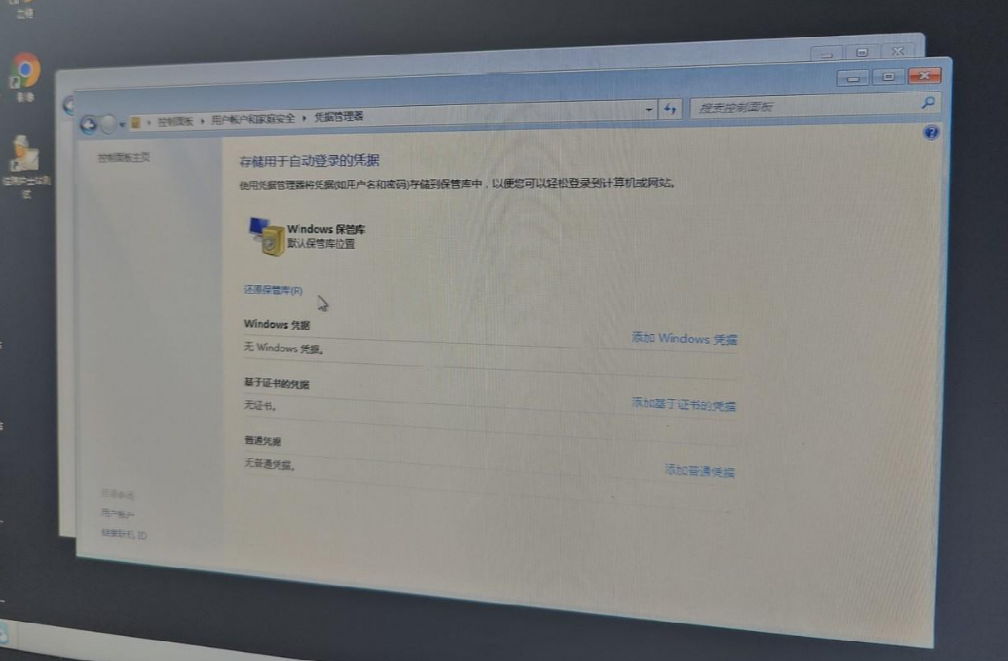
- Template Add network Shared Printer. After Shared Printer Add, Update template. After the restore Mode VM User Connected VM Passed Template Update, the Windows credentials exist for the first time, Lost after the Reset.
Warning Information
Effective troubleshooting steps
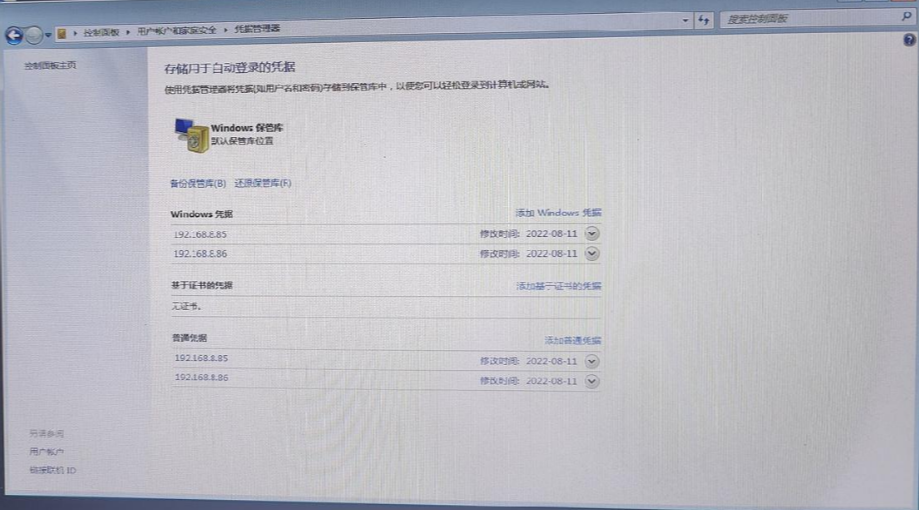
- View whether the Windows credentials exist Auto unlock after Template Log In template. View by – Control Panel – User Accounts and Family Safety – Credential Manager – Windows Credentials. Sometimes, when you Add Shared Printer Passed the network and Select remember the Windows credentials, Lost after Reset. If Lost, you can manually Add Auto unlock after Credential Manager.
- View whether the network Shared Printer Add Successful, and print a Test Connectivity page on the Template to see if it can be printed Successful.
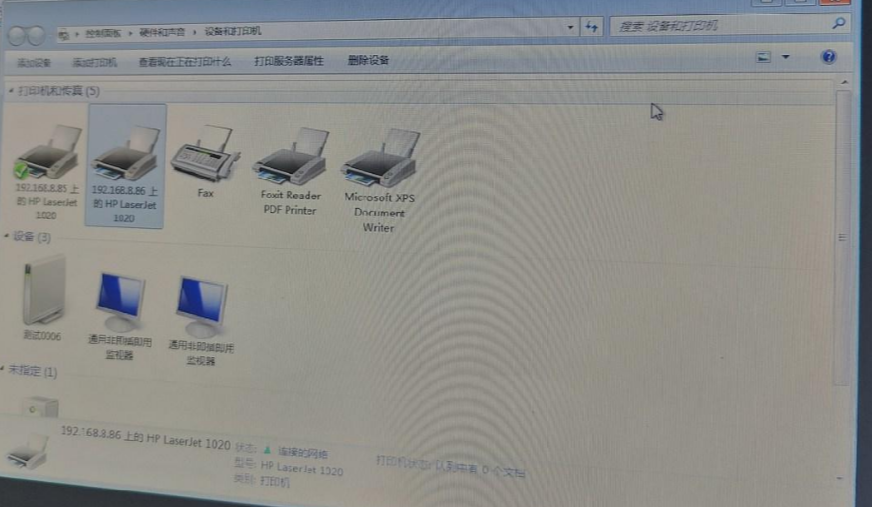
- Finish Template check, check the VM. minute two detection methods:
Method Mon: The derived VM is not associated with User. Open VM Auto unlock after VMP Administrator Console and restart it multiple times View whether the Windows credentials are lost. After on-site verification, the Windows credentials are not lost after the VM that User does not directly Connected is restarted, and the network Shared Printer can print Connected.
Method Tue: Derive a VM associated User and allow User Connected VM. The Windows credentials are found to exist during the first Connected and are not Lost. After Reset, the Windows credentials Lost and the network Shared Printer cannot print Connected.
Root cause
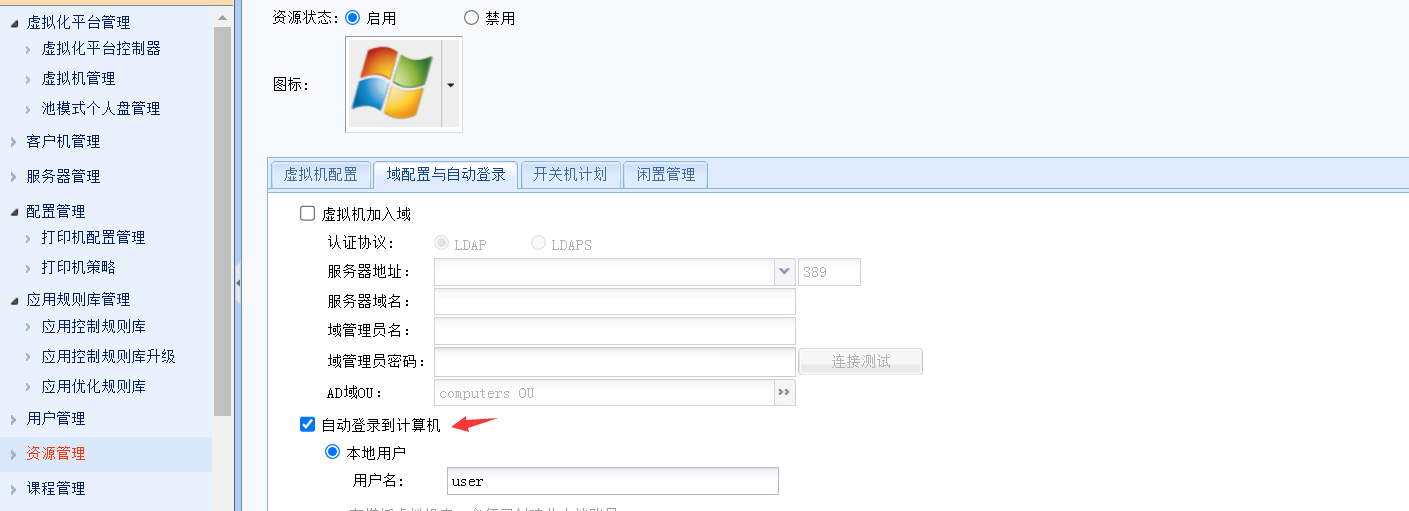
- The automatic Resource Log In function causes the Template Update credentials Lost. This is this product mechanism and cannot be changed for the time being.
solution
Solution Mon: Cancel Auto Login to the computer. After Cancel, Mode Windows credentials Reset not Lost when VM is restarted in restore mode, and the network Shared Printer prints Connected.
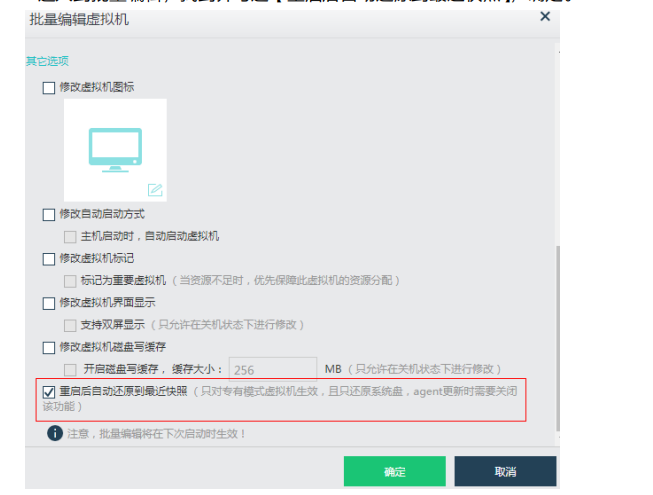
Solution Tue: Add network Shared Printer the Template and re-derive a new Persistent VM, take the first snapshot of the derived VM, and batch Edit the VM to enable the restart and restore to snapshot function to Restore the Settings to a certain point Time to achieve the same effect as the restore Mode.
Operation Impacts Applicable To
- **After enabling Reset and restore to snapshot function, VM will Close ** Agent automatic upgrade function. That is, Reset and restoring to a snapshot does not support Agent upgrade scenarios. To upgrade the Agent, you need to first Close this function Settings, then wait for the Agent upgrade Finish, take a Status of the latest state of the VM, and finally re-Enabled this function.
- VM has no snapshot, the Reset and restore to snapshot function is enabled, and no restore Operation will be performed when the machine is started. That is, when None snapshot, the Connected Powered On process is followed.
Original Link
https://support.sangfor.com.cn/cases/list?product_id=26&type=1&category_id=13283&isOpen=true