
【aDesk】A thirdWedparty Software handle leak causes the virtual machine to freeze after Running for a long Time
Problem Description
VM Running for a long Time, the CPU Usage and Mem Usage are full, and it Tips the system Resource are insufficient. VM is stuck after the requested Service cannot Finish.
Warning Information
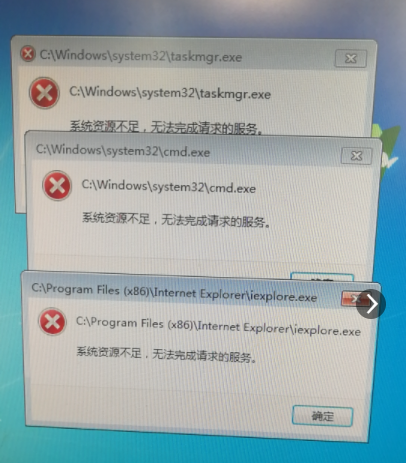
Resource (407.65 KB)
Effective troubleshooting steps
1. Running cmd with administrator Role and execute poolmon.exe -a
 poolmon.zip (29.19 KB)
Running Mon Time and determine whether there is a Mem Usage leak based on whether there is a significant difference between the allocated Mon released Mem Usage.
this case, there is no noticeable difference in the memory allocated and freed.
Initial Status:
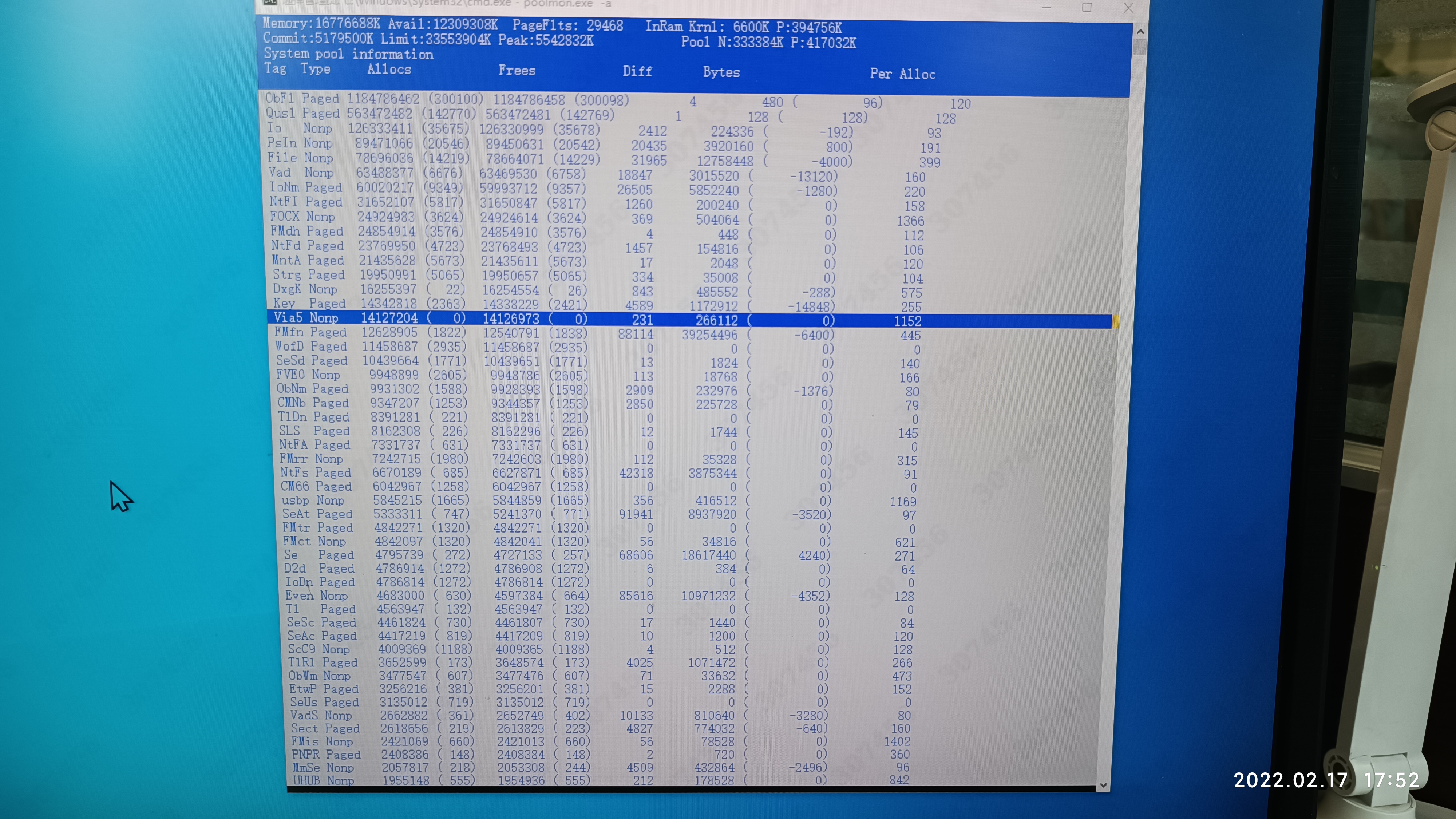
0217_1752.jpg (2.73 MB)
Running Mon:
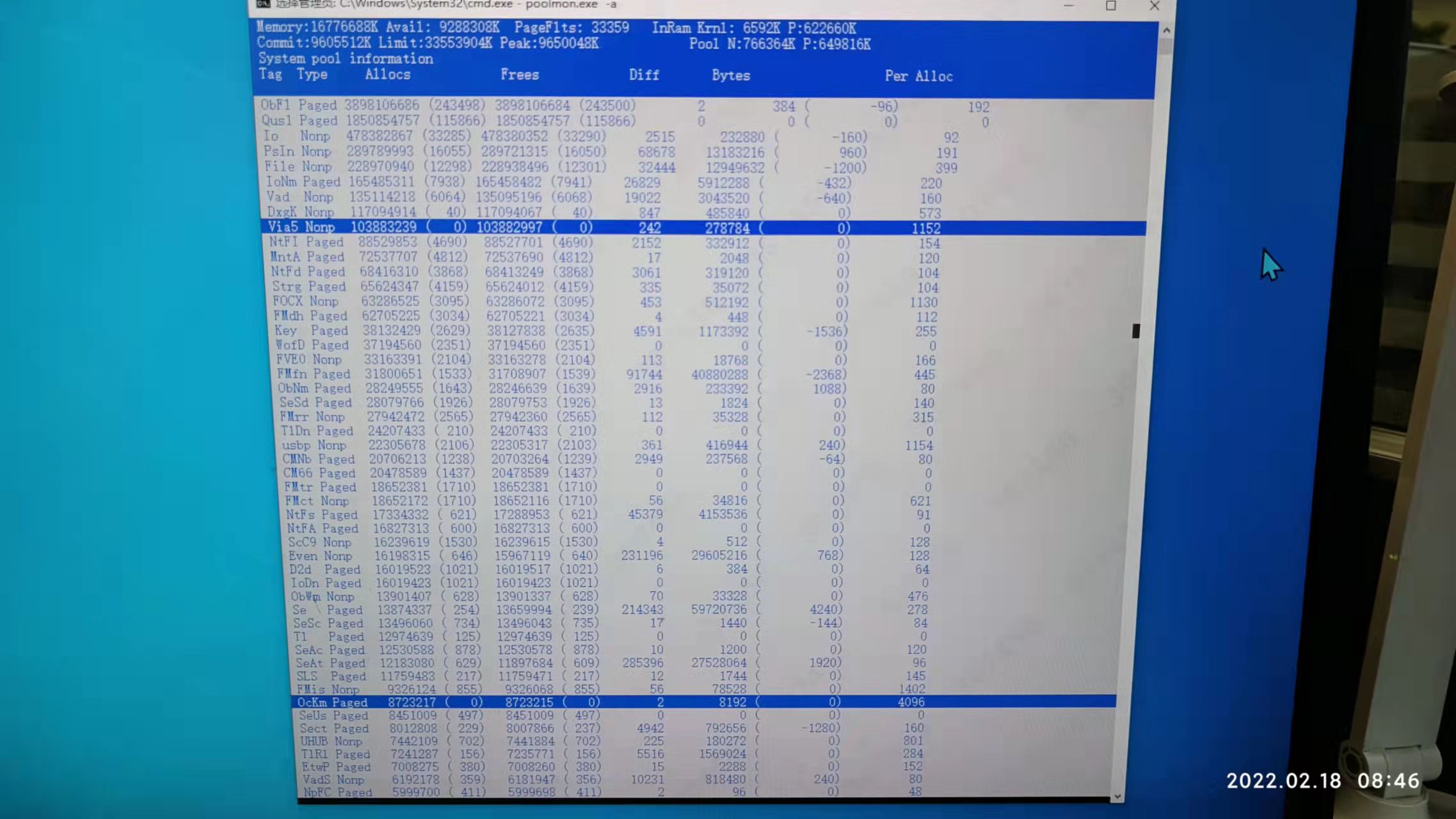
0218_0846.jpg (269.53 KB)
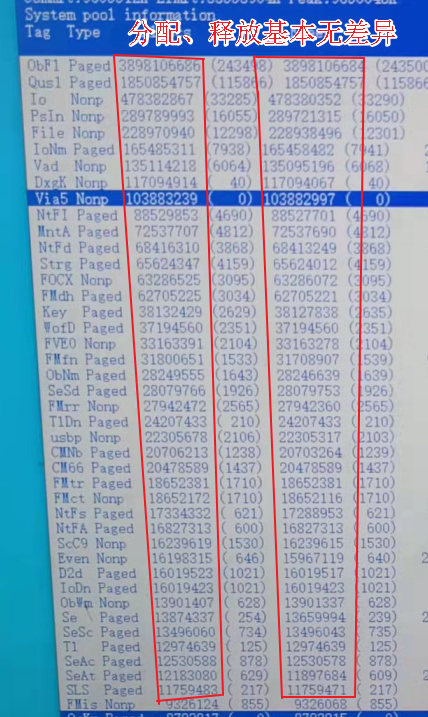
Basically no difference.png (514.89 KB)
2. Check the Running on a virtual machine that has been running for a long Time but has not been Details:
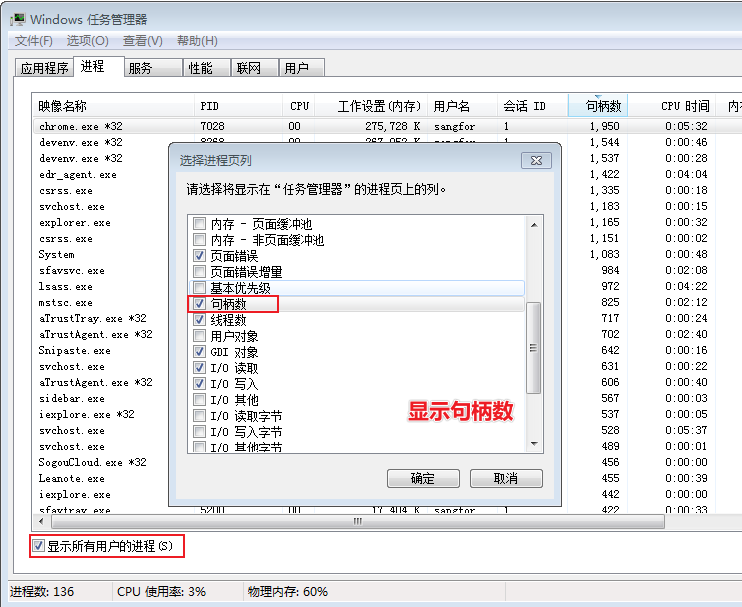
Settings handle display.png (42.5 KB)
Count risen to 790,000!
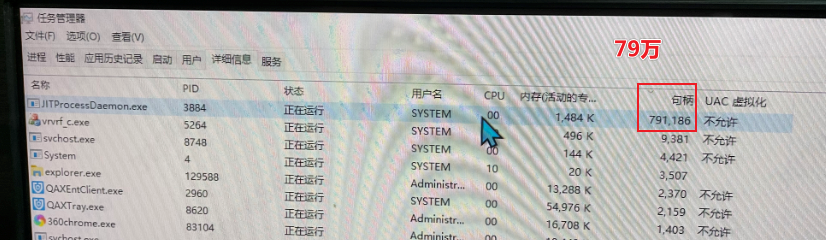
33.png (333.03 KB)
, killing Process, VM CPU Usage and Mem Usage are reduced
Root cause
Caused by third-Software handle leakage, Software Version:
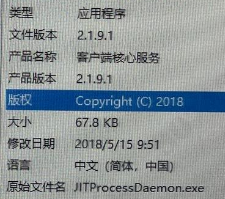
solution
1. The root cause is handled by a third-party vendor;
2. Follow the best practices provided Test Connectivity vdi testing and Shut Down regularly.
Suggestions and Conclusion
1. There are two possible reasons for the problem of the program freezing after a long period of operation:
(1) Application Mem Usage leak or handle leak;
Passed Task Manager OR procexp.exe Auto unlock after View the Process list on a VM that is not stuck and View whether there are any processes that have High CPU Usage or memory usage OR abnormal Count of handles.
(2) Drivers (especially encryption and security-related Software) may leak Mem Usage or be injected into Process, causing Process process space to not be completely released when Process is Close.
Follow the previous method to View whether there is an obvious Mem Usage leak in the driver Passed poolmon.exe, as shown in the following figure:
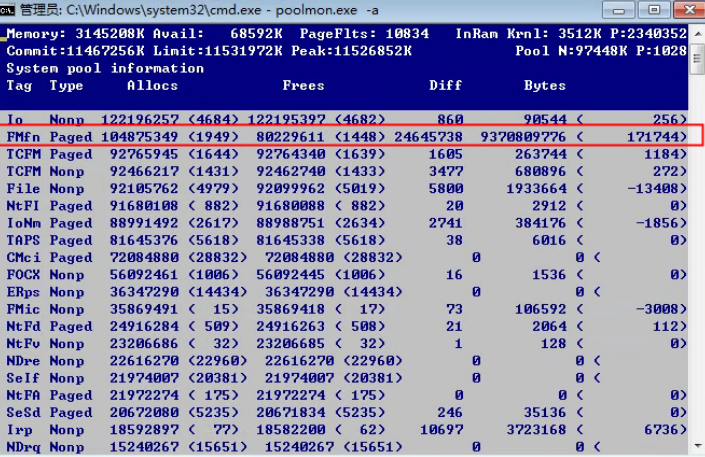
There is a clear difference and Allocs and Frees. At this time, we can search for the corresponding driver based on the Tag (FMfn in the figure):
findstr /s /m /l "FMfn" c:\windows\system32\drivers\*.sys
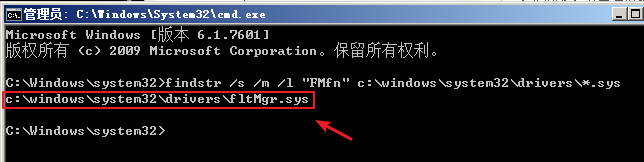
If you cannot find the File exists, you can use "everything" to search. Replace the File in the above findstr command one by one.
Original Link
https://support.sangfor.com.cn/cases/list?product_id=26&type=1&category_id=11103&isOpen=true