
【aDesk】Abnormal graphics card driver OR failure to obtain graphics card Licensing leads to abnormal use of 3D Software
Problem Description
OK there is no problem with the graphics card server, you need to check the graphics card client. Common graphics card problems on the graphics card client are graphics card driver Error or failure to obtain graphics card Licensing. Therefore, this section focuses on issues related to the graphics card client.
solution
-
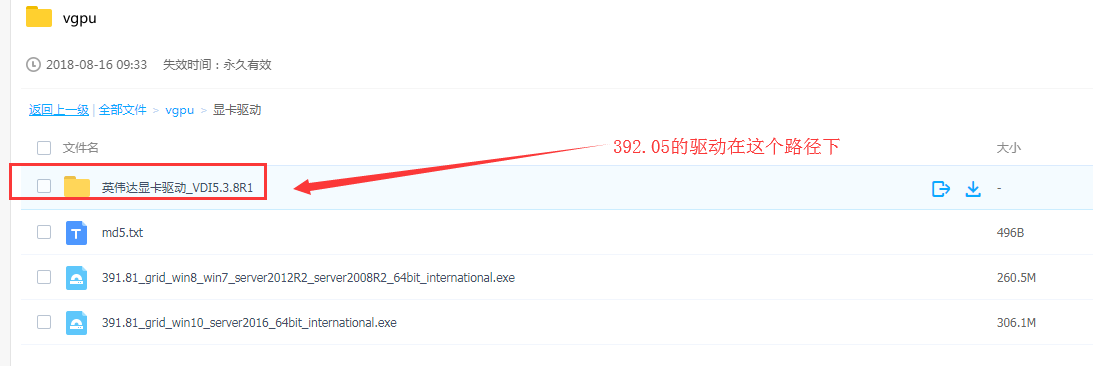
When Install the graphics card driver, please note that for Version 5.3.8R1 and BelowVersion the graphics card Install installed. For graphics card Version Above 5.3.3-5.3.8 (including 5.3.3 and 5.3.8), the graphics card driver 391.81 should Install installed. The VM Install graphics card is installed must Enabled graphics card enabled.
vGPU graphics card driver and Licensing server Download link:
https://pan.baidu.com/s/1FB4QGkcUL3V4C7j9-iC8Vg Password: lezw
-
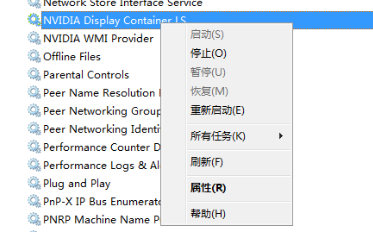
If Yes Install interface freezes when Install driver, refer to the following figure to stop the NVIDIA display container Service and then Install. Other errors Mon generally Yes not Enabled graphics card, not exiting Log Out Firewallvirus software and firewall, so you can try Log Out Firewallvirus software and firewall.
-
If you cannot obtain Licensing Below Install the graphics card, you need to check whether the following Settings Connected;
a. Check whether the Licensing server Address Settings Medium the NVIDIA control panel is correct, and OK the virtual machine can ping the server IP address;
b. Check the system time of VM and compare it with the system time of the Licensing server. They must be consistent.
If the client system time is Change, you need to Reset NVIDIA Display Container LS Service;
If Change Time Licensing server is changed, it is recommended to Reset Licensing server;
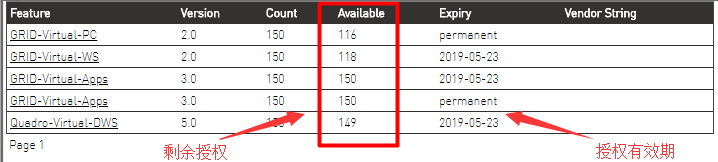
c. Check the number of available Licensing this on the authorization server to OK there are any remaining Licensing and whether they are within Validity.
Visit the Licensing server web administration and management page to View, as shown below:
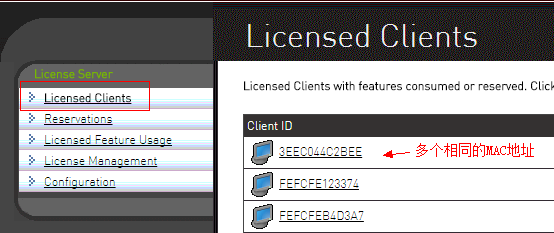
d. If there are no remaining available Licensing, check Auto unlock after Licensing server whether multiple Licensing are assigned to the same VM. If multiple identical MAC Address appear, follow the steps below:
(1) You need to re-Import Licensing server and re-Licensing.
(2) Operation step e to delete the 2 File VM machine.
e. OK whether the VM Yes named in Chinese (Chinese naming Not allowed)
f. If you still cannot obtain authorization after eliminating the above situations, please manually Delete all File (including hidden File) Auto unlock after the following directories of the client VM and Reset NVIDIA Display Container LS Service
Path: C:\Program Files\NVIDIA Corporation\Grid Licensing\
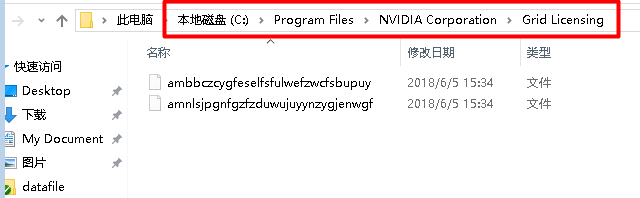
g. If the above does not solve the problem, uninstall the NVIDIA driver and reinstall Install
h. If the above OK are OK, but the authorization still cannot be Licensing, and OK Version the client graphics card driver is confirmed to be the latest, directly contact the professional;
- If the graphics card driver is OK to Connected and the authorization has been obtained Connected, go directly to step Wed;
Suggestions and Conclusion
Auto unlock after OK the graphics card Licensing server and graphics card client Connected, you need to check the inside of the virtual machine and Software itself. If you OK steps Mon and Tue are Connected during the processing, you can jump directly to step Wed.
Original Link
https://support.sangfor.com.cn/cases/list?product_id=26&type=1&category_id=12633&isOpen=true