
【aDesk-SBC】Product related issues: Remote App does not display the App window
Problem Description
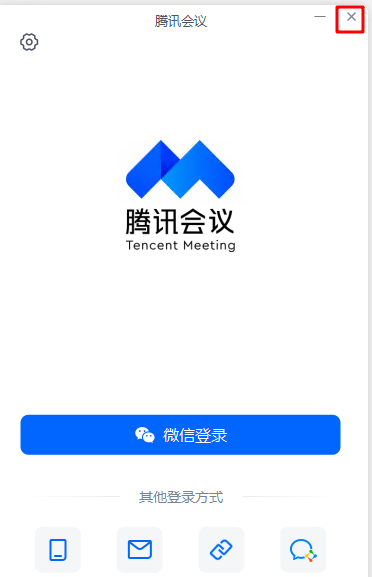
Release Tencent Conference Remote App (SBC). When you click on the Tencent Conference Resource for the Mon times, Open Tencent Conference can be opened Connected. However, after the window is ×ed, the window will not be displayed when you click on Resource again.
Warning Information
Effective troubleshooting steps
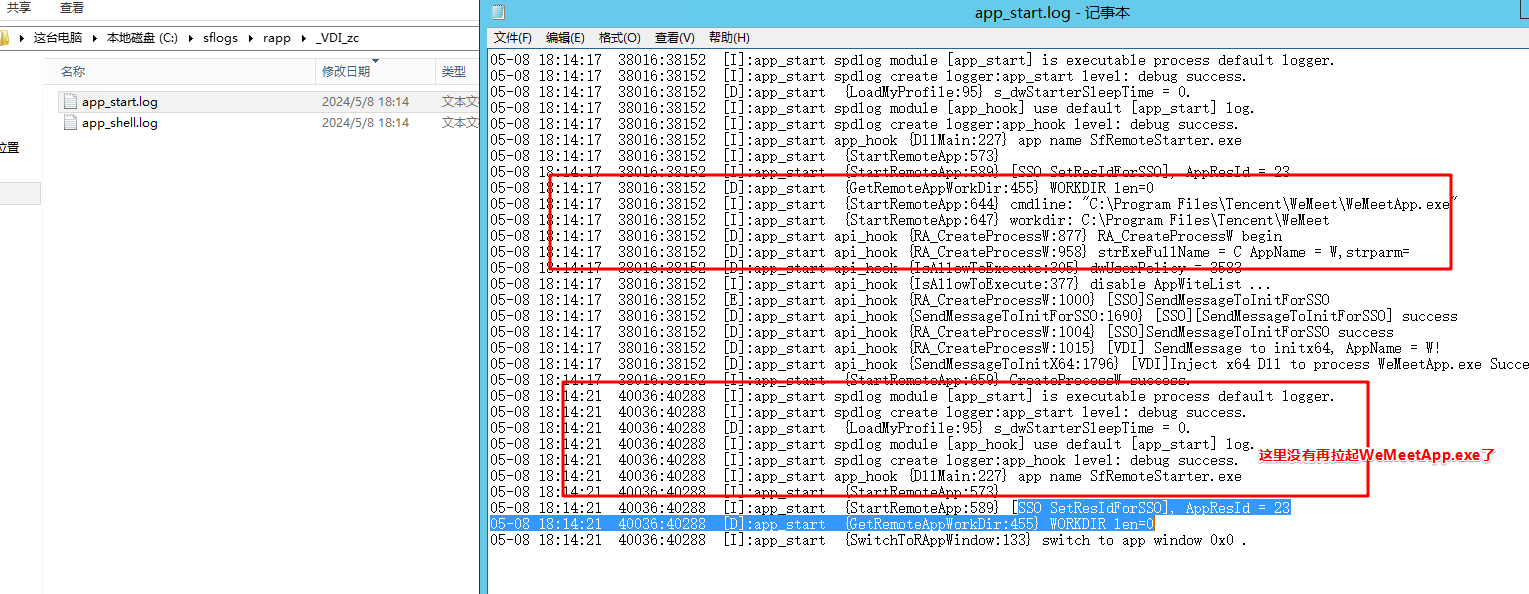
- Analyze the SBC server log and find that after closing the window and Open, sfremotestarter no longer pulls up Tencent Conference WeMeetApp.exe
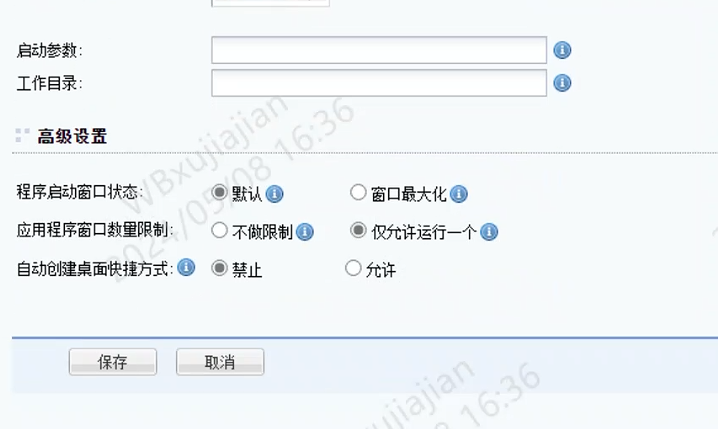
- Analyze the code logic and find that the Odd window logic of the application is App; check the Resource of this resource on the VDC and find that the application window data limits only one window Allow Running.
When the window is closed, Tencent Meeting itself is not All Log Out, and the process still exists, causing sfremotestarter to not pull up Tencent Meeting WeMeetApp.exe again
solution
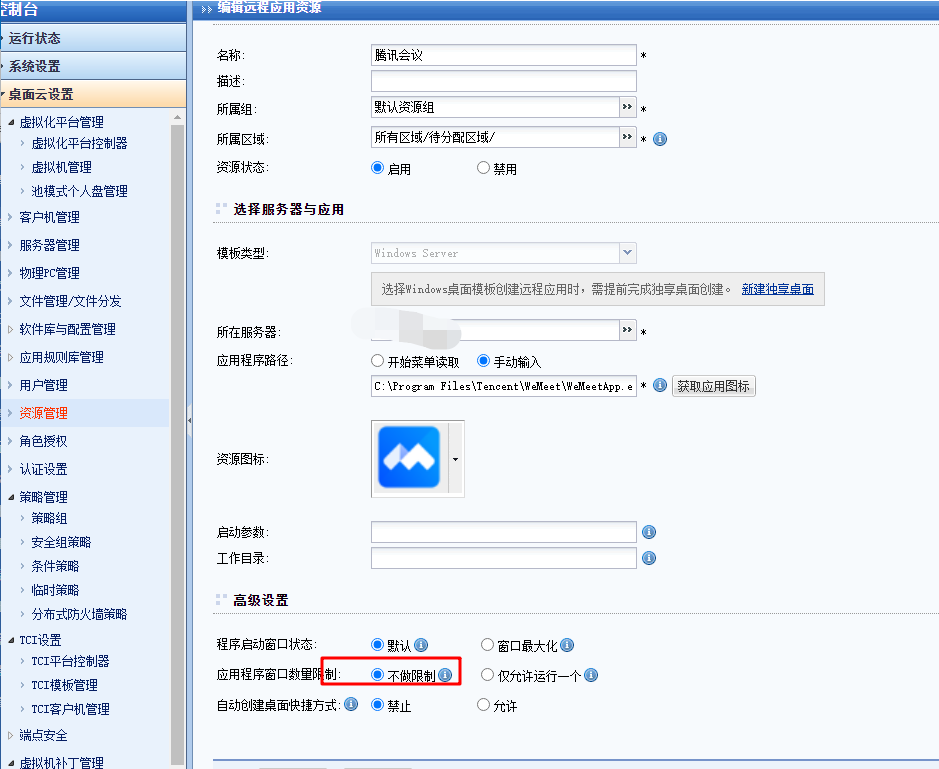
Auto unlock after VDC Resources, change the Application Window Count Medium the corresponding Tencent Meeting Resource: to None
Suggestions and Conclusion
Mon, the Default Settings is used in the [Advanced Settings] of SBC Resource. If App does not support Maximize Window, the program startup window state is Settings to Default
Original Link
https://support.sangfor.com.cn/cases/list?product_id=26&type=1&category_id=27379&isOpen=true