
【aDesk_SBC Remote Application】Failed to connect to the server, please check the network
Problem Description
In the SBC Remote App scenario, when you Click App Resource, Tips error message "Failed start the program", "Failed: Failed to connect to the server, please check the network", and "The session Process Error" Log Out
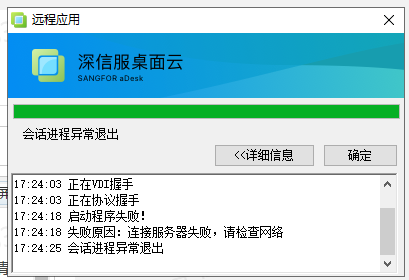
Warning Information
"Failed start program"
"Cause: Failed to connect to the server, please check the network"
"Session Process Error"
Root cause
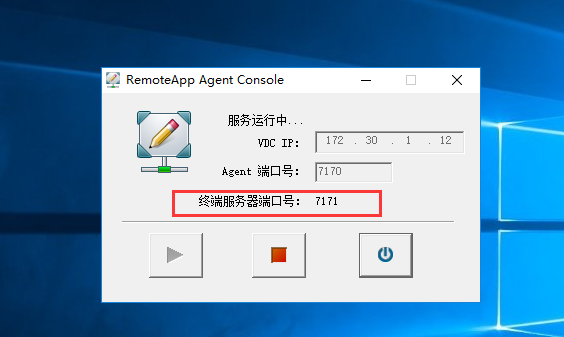
The network communication between the client and the application server is abnormal. You must ensure that the client can communicate with the terminal service port of the application server. You can open the RemoteAppServer program in the application server to view the following:
solution
Open the relevant Port
Suggestions and Conclusion
In the SBC Remote App scenario, AND Desktop, after the client and VDC Successful, they need to communicate directly and app server, so the network port between the client and app server needs to be Port
Original Link
https://support.sangfor.com.cn/cases/list?product_id=26&type=1&category_id=11843&isOpen=true