
[aDesk] When Settings VDC configuration option “Require “User@Domain” to be entered for Authentication” is checked, User will not be automatically added to the Administrator group
Problem Description
After VDC Resource administration and management Settings to automatically join the Administrator group, User cannot have administrator group permissions after Log In into the VM.
Warning Information
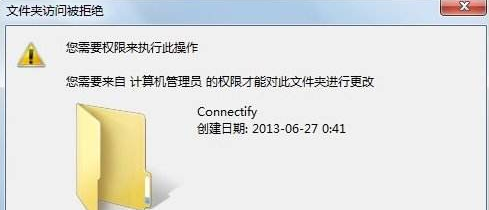
199595d5d2c40857b2.png (68.98 KB)
Process——
- Passed checking Group with administrator Role Medium the user group, it is found that there is no this Log In User.
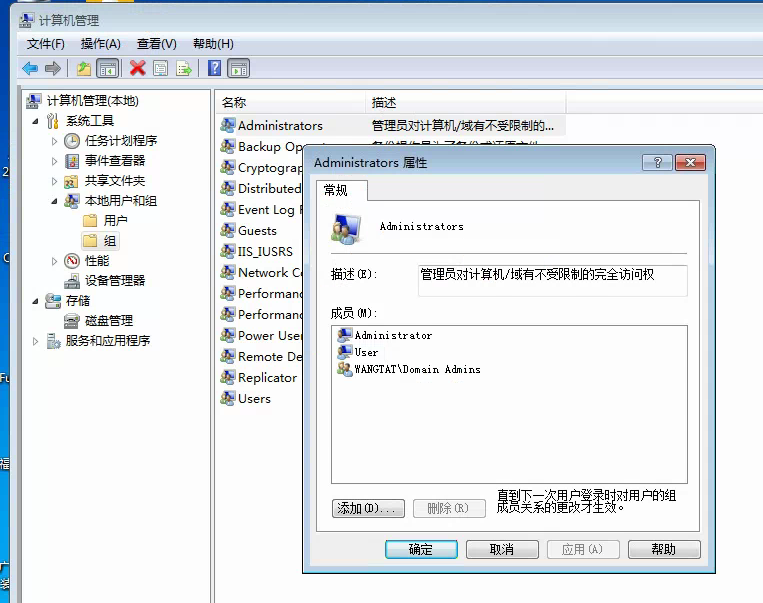
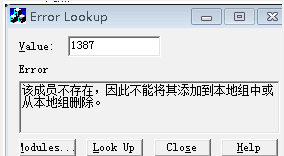
931365d5d29b800810.png (207.06 KB) - Log in to the AD domain and query Yes full name of the User. It is found that it cannot be found and the Error code 1387 Tips.
949955d5d2a3795dd3.png (5.94 KB) - Check the Settings VDC and check the option to enter "user name@Domain" for Authentication (example: user@adserver.com)

950865d5d2a6cbd415.png (38.87 KB) - Cancel the box, User Log In , join the administrator group Connected.
Root cause
If this option is Log In, User will automatically have the suffix @wangtat.com.cn when logging in. When verifying with User on the domain controller, it will be found that the user cannot be found, so joining the administrator group will Failed.
solution
Cancel "Require "username@Domain" for Authentication (example: user@adserver.com)"

477695d5e84163536e.png (4.14 KB)
Suggestions and Conclusion
When encountering such a problem, the Prime Minister determines No User exists on the domain controller. Based on the Log In verification principle, check No User name has been changed and No there is any Settings the VDC that can change User name Type.
Original Link
https://support.sangfor.com.cn/cases/list?product_id=26&type=1&category_id=10807&isOpen=true