
[VDI] Failed To Add New aServer Into VMP Cluster
Issue Description
Customer wants to expand the existing VMP cluster from 3 nodes to 4 nodes, but unable to proceed with adding node.
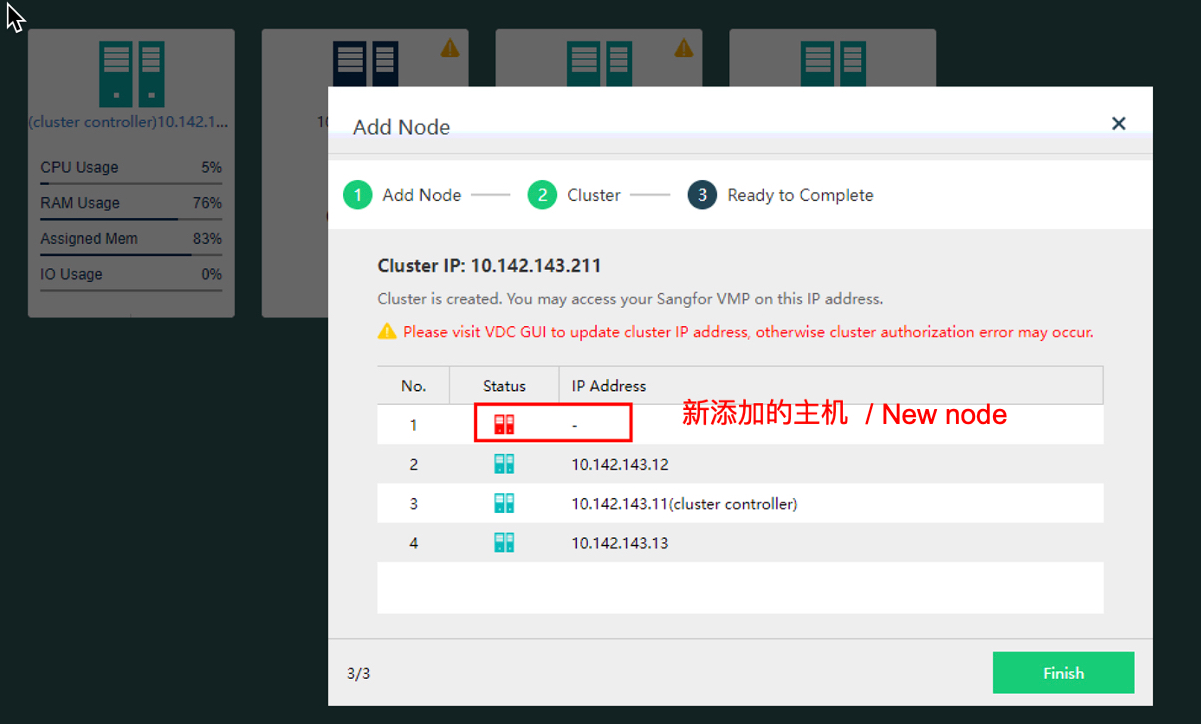
Prompts: Please visit VDC GUI to update cluster IP address, otherwise cluster authorization may occur.
Error/Warning Information
Handling Process
-
Verify the VMP appversion, it is consistent and no patches.
(Suggest to confirm on backend as well: /boot/firmware/custom) -
Confirm that all hosts can ping and SSH each other.
-
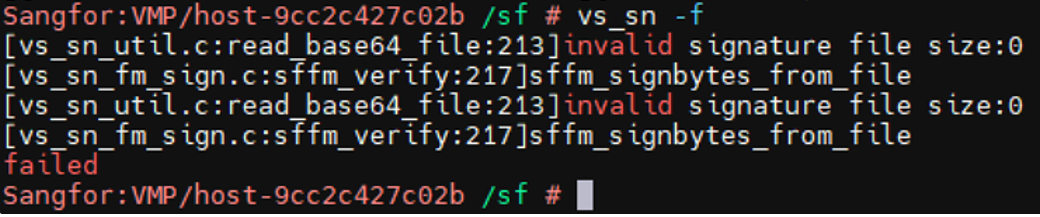
Check whether aServer host signature is still valid.
Command: vs_sn -f -
Found that aServer signature is lost.
-
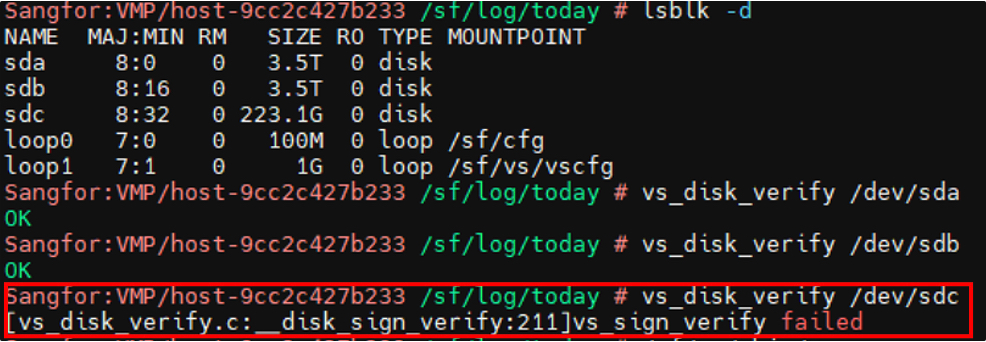
Check whether the disk signature is still valid.
Command : vs_disk_verify /dev/sdX -
Found that one of the aServer disks signatures is lost.
Root Cause
By default, both VDS and aServer will be signed and the function is to identify it as Original Sangfor hardware and only original Sangfor hardware can be used for subsequent hardware upgrades.
The host and disk signatures might be lost due to the operations such as formatting, reinstalling the system, and adjusting the BIOS/RAID configuration, resulting in authorization lost.
A signed host must use signed disks, and a signed disk can be used by unsigned hosts (non-Sangfor Server).
Solution
Important: This applies to Sangfor aServer only. Not applicable for 3rd party servers.
- Collect the required info and submit to 400(HQ) for generating the signature.
- Follow the following guide, for signing aServer or disks.
Host Signing procedure
1.Place the signing script under /root
2.cd /root
4.chmod +x (assign permission on the script file.)
- ./hw_xxxx (execute the signing script.)
- Prompts success indicates the host has been signed.
- Reboot is required on the affected host to take effect of the new signature.
Disk Signing procedure
1.lsblk -d (view all disk block id.)
2.vs_disk_verify /dev/sdX (check each disk signed status. system disk does not need signature)
3.vs_disk_verify -w /dev/sdX (Hardware team will generate the key to sign the disk. Key is generated based on the value from vs_get_disk_sn.sh).
4.disk_scan.sh and then vs_disk_verify /dev/sdX to check whether the disks are signed.
Suggestions
How to check aServer host signature is valid
vs_sn -f
expected output: ok
Required info to generate signature:
dmidecode -t 2
/sf/vs/sbin/vs_sn -p
How to check aServer disk signature is valid
vs_disk_verify /dev/sdX
expected output: ok
Required info to generate signature:
dmidecode -t 2
vs_get_disks_sn.sh