
[VDI] Unable to use PC WebCam on VDI VM
Issue Description
This trobleshooting guide describes how to configure the parameters of the Webcam in the VDC to resolve the issue that the PC Webcam cannot be supported or is not supported in VDI VM.
Error/Warning Information
- After the solution was implemented, it will required user to relogin the Vdi Client.
Handling Process
Step 1:
-
Open software AMCap, perform the following step to retrieve the webcam information.
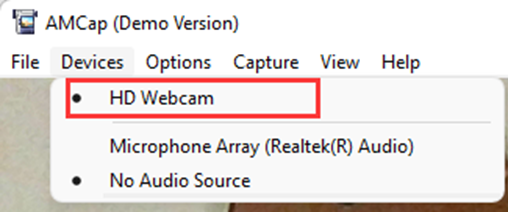
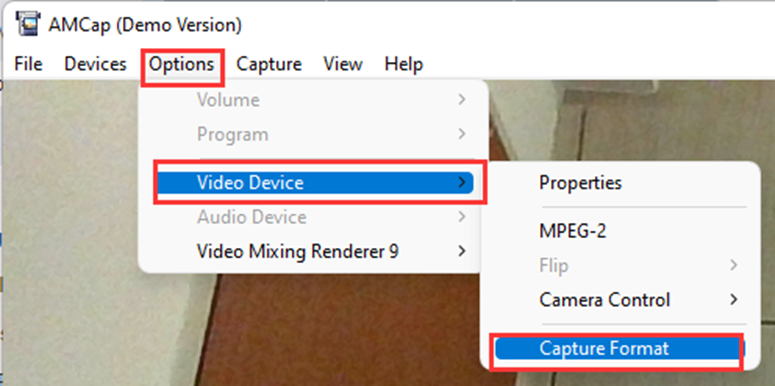
-
Navigate to [Option]-[Video Device]-[Capture Format] to retrieve the webcam information.
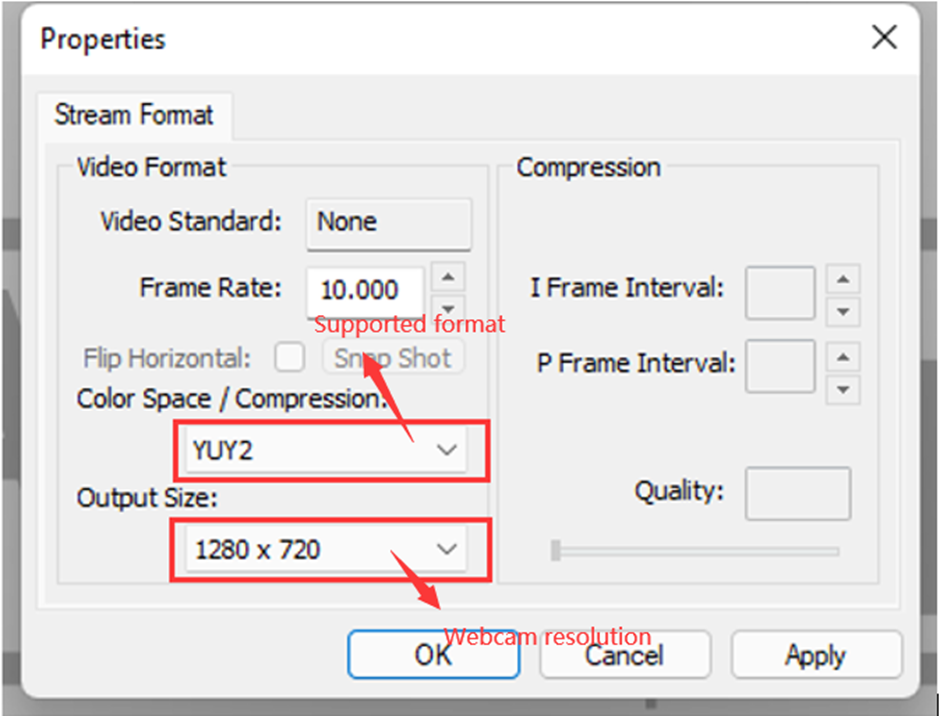
-
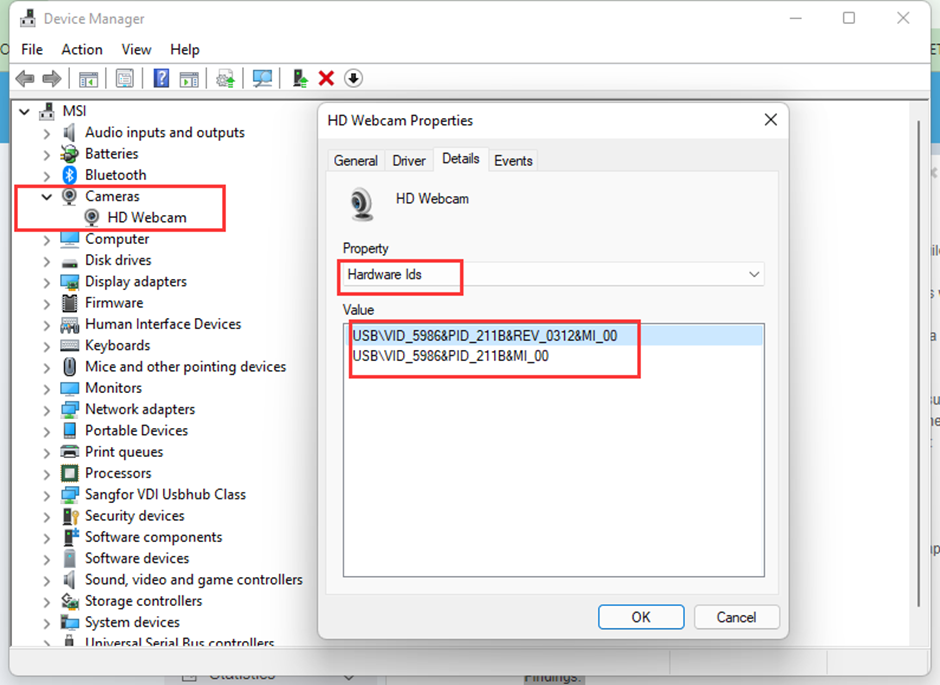
Go to Windows, navigate to [Device Manager] to retrieve the webCam vid:pid value. (Make sure the webcam has been enabled by the PC).
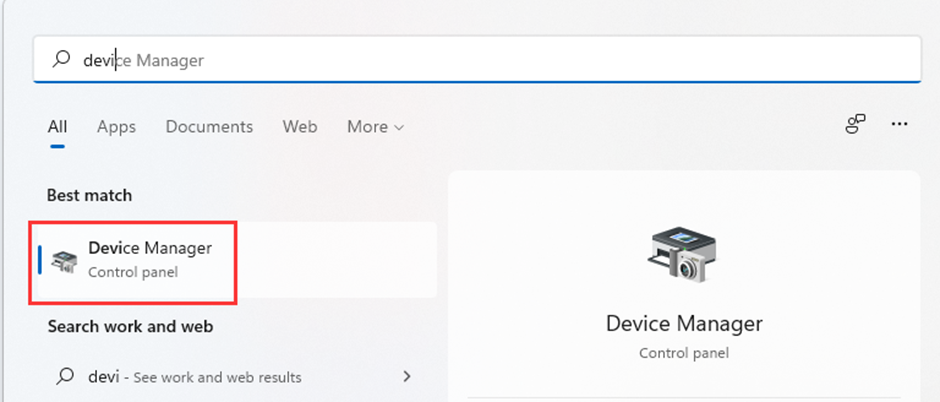
Root Cause
WebCam did not configure usb mapping on the VDCI policy set, after whitelisted and setup the parameter for the WebCam device, issue resolved.
Solution
Step 2:
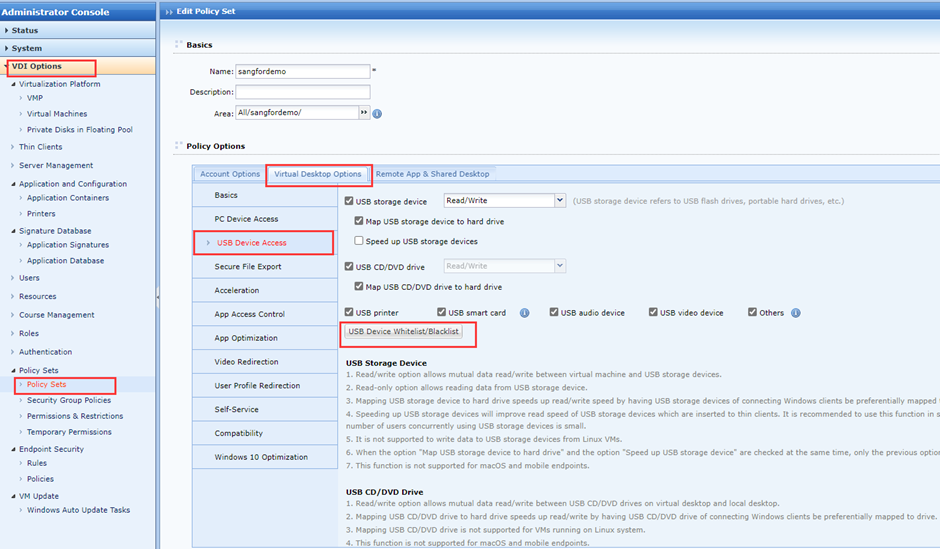
- Access to VDC platform, navigate to [VDI Option] – [Policy Sets] – [Policy Sets].
- Select the respective policy which applied on the VM.
- Navigate to [Virtual Desktop Options] – [USB Device Access] – [USB Device Whitelist/Blacklist].
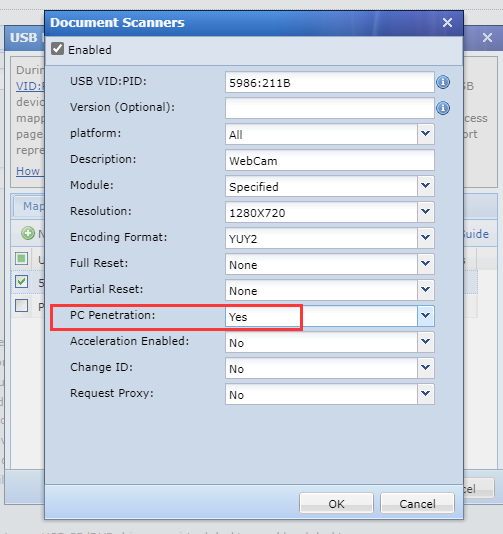
- Navigate to [Document Scanners], click [New].

- Configure the WebCam by entering all the information retrieved on step 1.

- Enable the [PC petnetration] option.
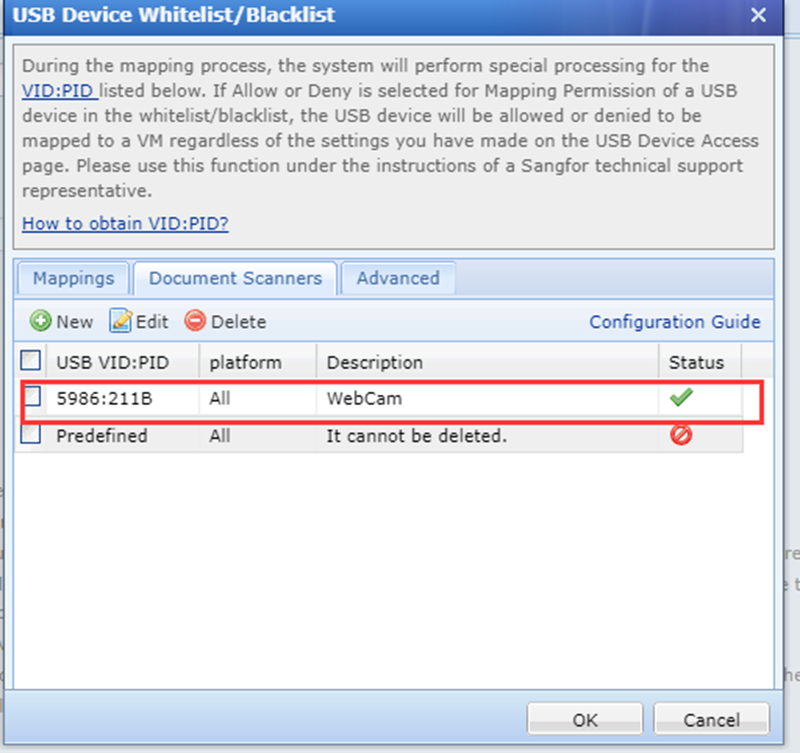
- Click [OK], follow with [Save] and [Applied] to confirm the changes.
- Before rebot the PC, log in to the VM once and restart the PC again.
Suggestions
- For video conference scenarios, 640X480 resolution (or 800X600 resolution) is recommended.
- For the software AMCap, installation needed on the physical PC, refer to the attachment below for the AMCAP software.
Community Tools: amcap-9-23-build-300-6.exe
https://community.sangfor.com/forum.php?mod=attachment&aid=NzQ5MDV8YjE2M2RiMjN8MTczMTk0Mjc2NXwzNDA3Mnw1NjY1