
VDI Agent Status Abnormal Troubleshooting
Issue Description
VDI Agent Status Abnormal Troubleshooting.
Error/Warning Information
Handling Process
-
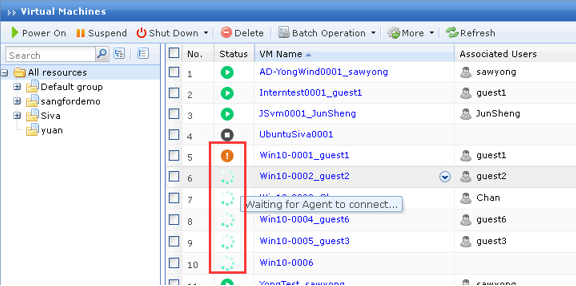
Verify the VM agent status on VDC.
- I. Verify is the agent has been installed into the VM properly. Make sure the VM is powered on and display the agent version.
- Also, you can check the agent version through the registry.
Path:HKEY_LOCAL_MACHINE\SOFTWARE\Wow6432Node\Sangfor\SSL\VDI\Version - Verify if the agent version matches with VDC and VMP current firmware version.

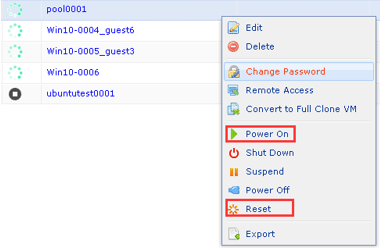
- Confirm whether the VM is newly deployed, make sure the VM is power on by VDC for the first boot up. After derived VM from template VM, it needs to be restarted in batches by the VDC.
-
Check the VM agent services status.
-
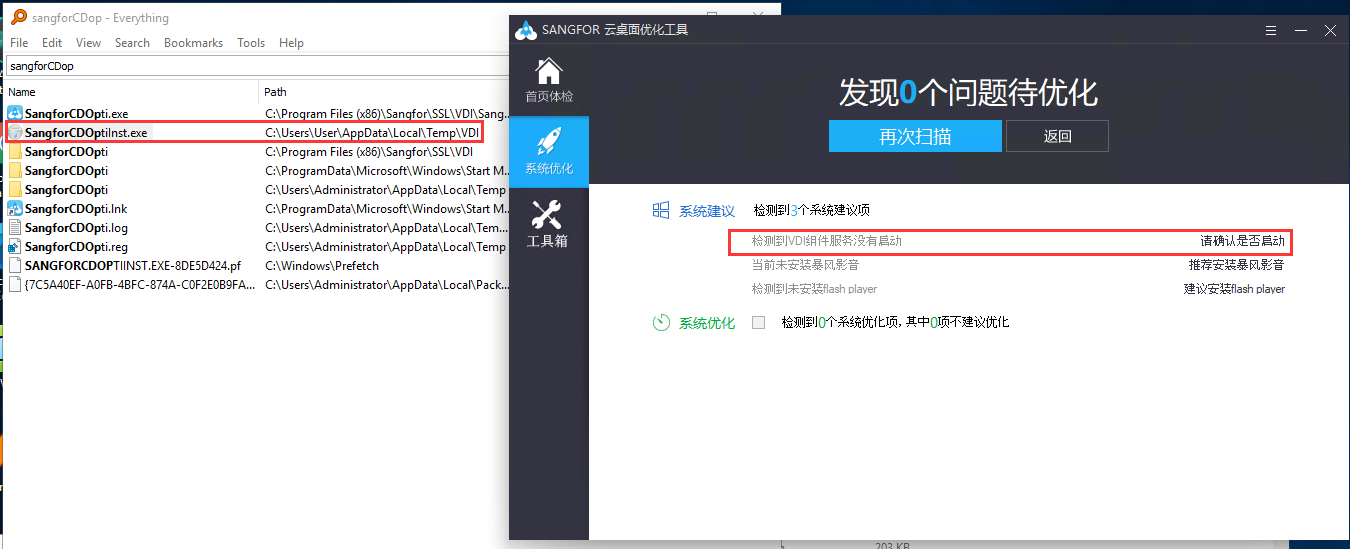
Use Sangfor Optimize tools to do health check scanning. By default, the SangforCDOpti is not installed, go to below path and manually install it. Then, go to start, search for SangforCDOpti.exe.
- Path:
C:\Users\User\AppData\Local\Temp\VDI\SangforCDOpti.exe
- Make sure Agent services, RVLAgent and Sangfor* services startup type is set to automatically and the services is in started status.
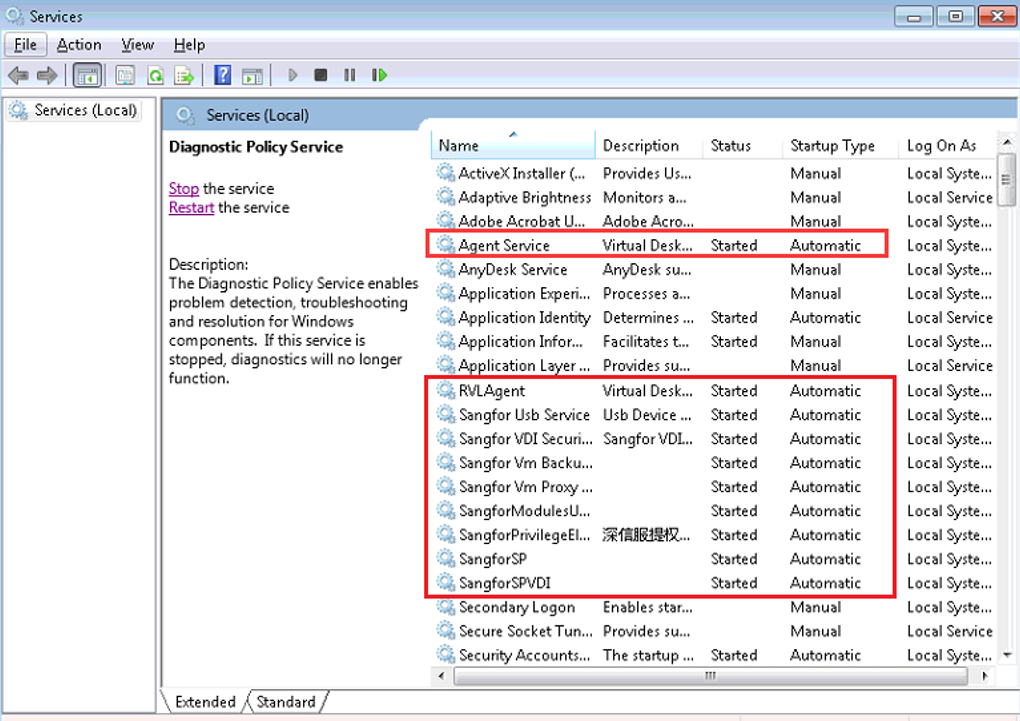
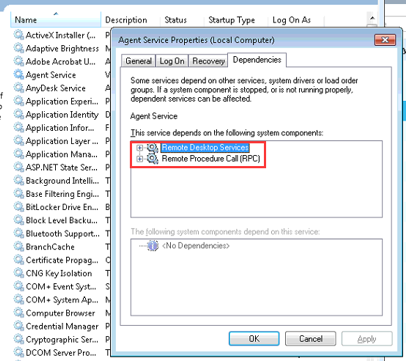
- Right click “Properties”, make sure the dependencies services is running fine.
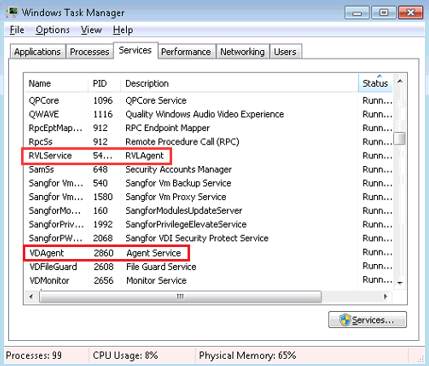
- Go to task manager, ensure the RVLservice and VDAgent is running fine.
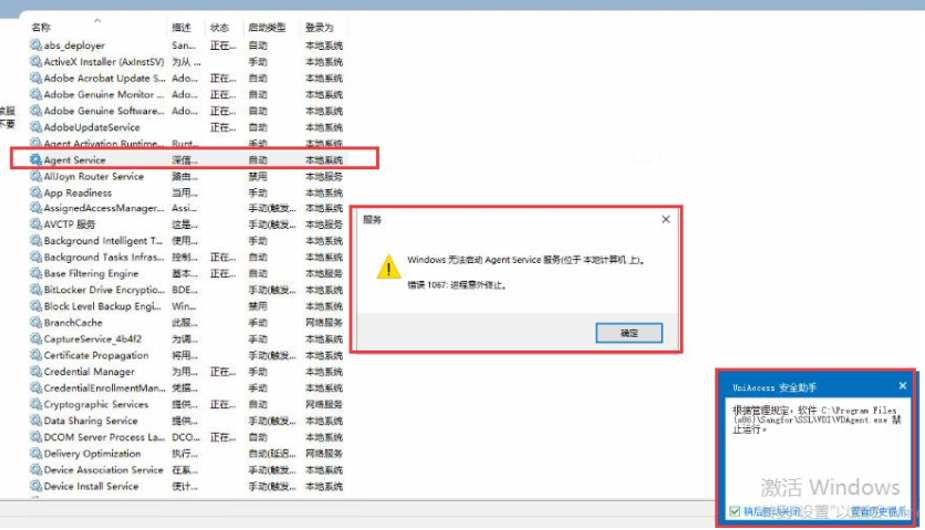
- Try manually restart the Agent services and RVLAgent services.
- Path:
-
-
Check if the VM has configured a firewall or any antivirus. If yes, check the antivirus logs/event. Next, try to disable or uninstall the antivirus to make sure no antivirus intercepts the VDI agent process.
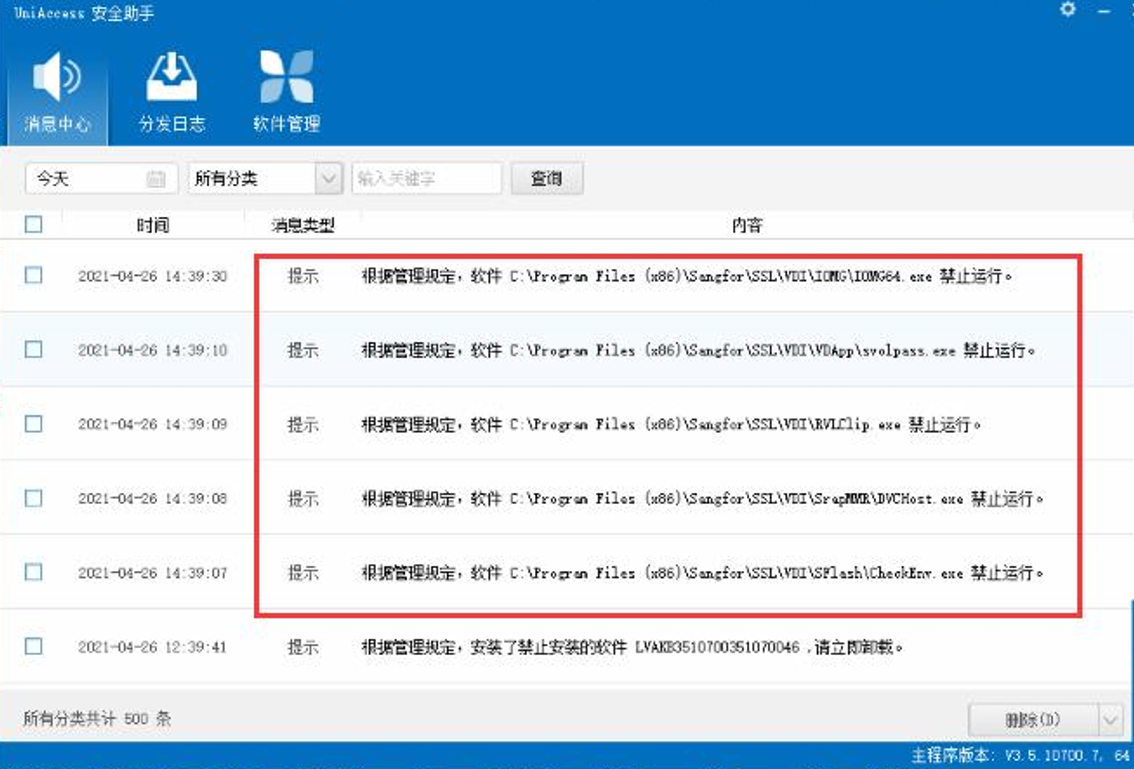
Note: If uninstalled antivirus but the agent status still showing abnormal, try to reinstall the VDI agent on the VM. -
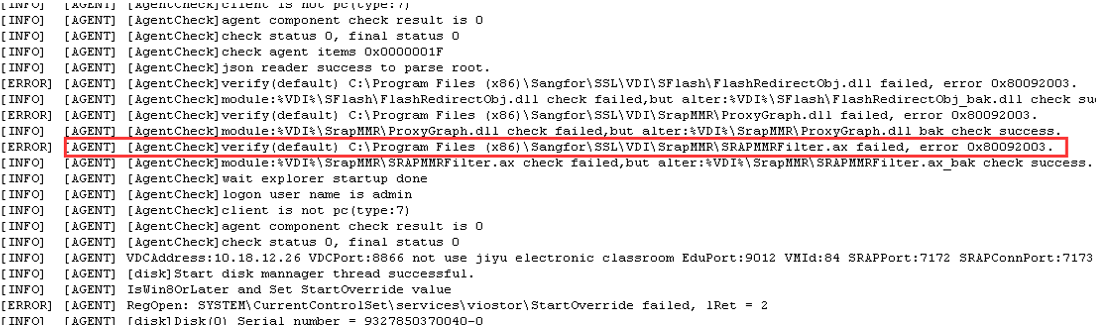
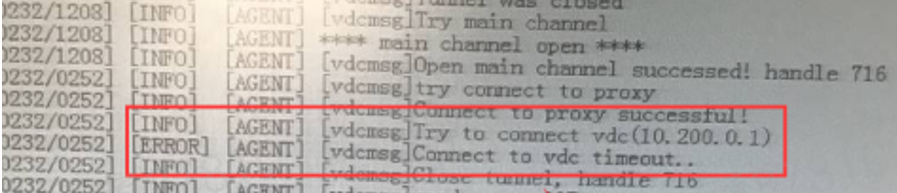
Check the VM agents logs and VDC alarm logs.
- i. VM agent logs:
Path:Drive C:/Program file x86/sangfor/vdi/logs/VDagent.log 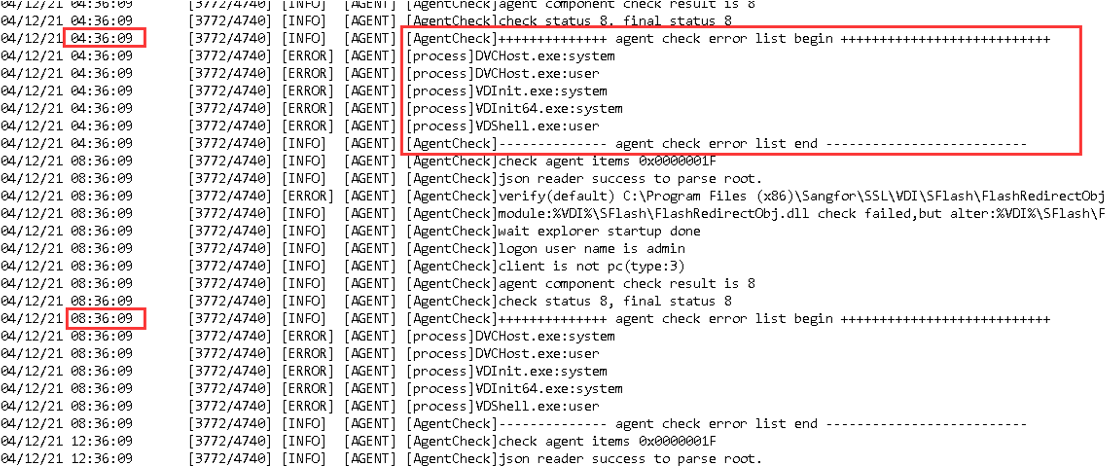
- ii. VDC logs:
If found any abnormal error code in agent logs, try to check the error code details in VDC 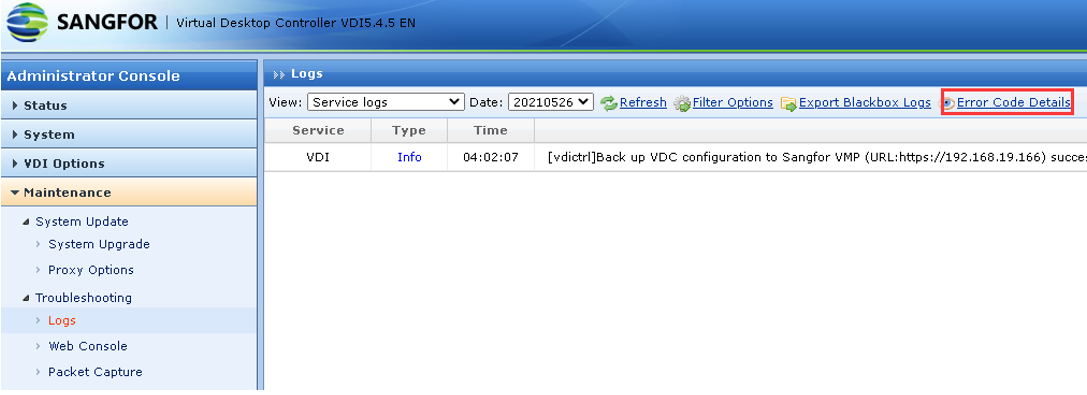
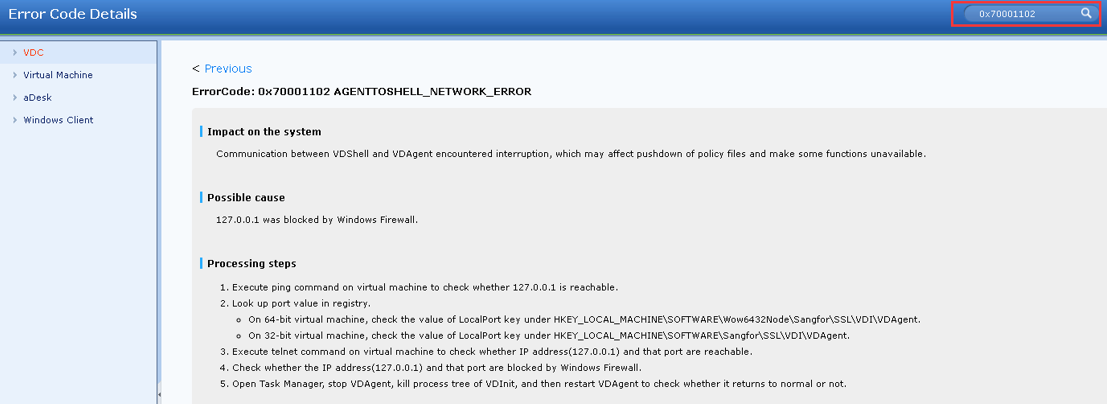
- i. VM agent logs:
-
Verify how many VM having an agent abnormal error. If only a few VM are affected, try to reinstall the VDI agent.
-Proper way to uninstall VDI agent:
Path:Computer/Local C:/Program Files/Sangfor/SSL/VDI/uninst.exe
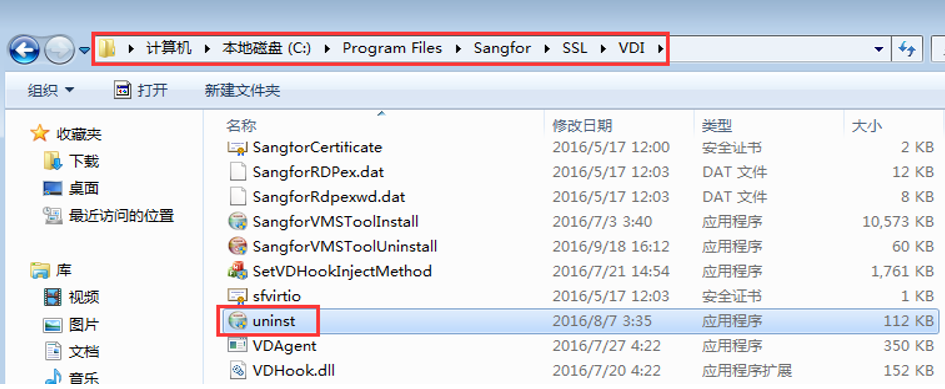
Note: After uninstall the agent, please restart the VM.- Install VDI agent:
i. Download agent from VDC webUI: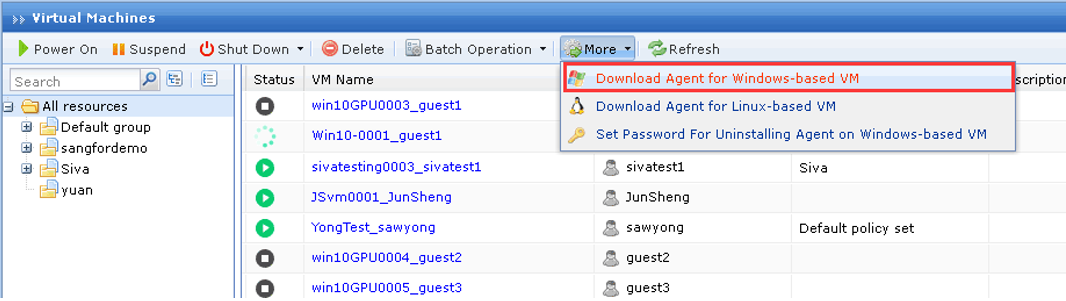
ii. Download agent using link: http://VdcIP/com/win/VDesktopServerInstall.exe
- Install VDI agent:
-
Verify the network communication between VMP, VDC, and VM.
-
Version before 5.2:
VM is required to configure IP address in order to let the agent service communicate with VDC. Ensure the VM is able to telnet VDC port 8866.
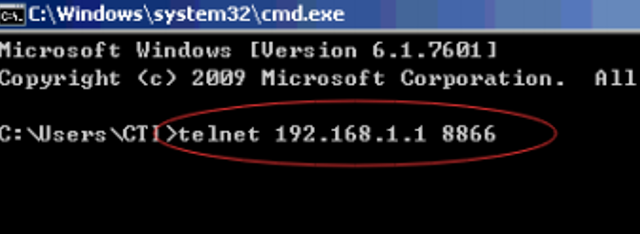
-
Version 5.2 and after:
Using agent ipless technology, VMP and VM use internal processes to communicate to get the agent status, and then VMP will feed the agent status to the VDC with port 8866. We need to ensure port 8866 of VDC and VMP communicate normally.

-
-
Verify the VMP agent ipless status and process.
- Make sure VMP has enabled agent ipless feature. You can try to modify the following file to change the communication mode of the agent. Modifying the configuration file does not affect VM access, but the VM needs to be restarted to take effect.
Command:cat /cfs/system_config.ini
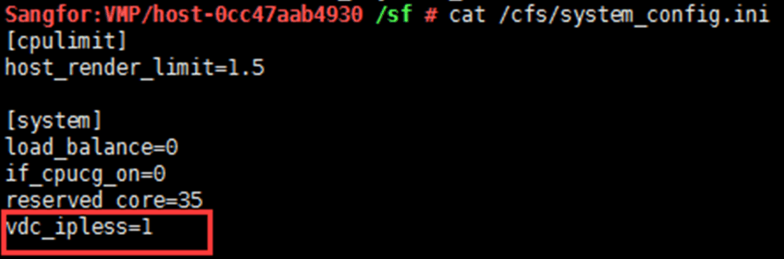
- vdc_ipless = 1 means the ipless is enabled. Need to ensure that the 8866 port of VDC and VMP communicate normally.
- vdc_ipless = 0 means the ipless is disabled. VDC and VM communicate directly through the network.
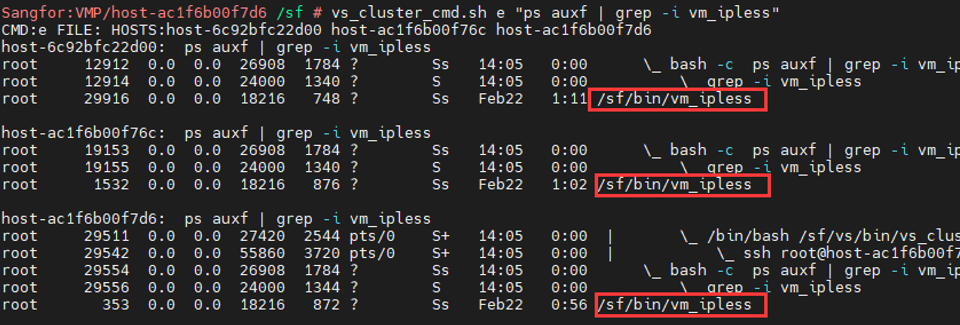
- Ensure the "vm_ipless" process is running on all VMP host.
Command:vs_cluster_cmd.sh e "ps auxf | grep -i vm_ipless"
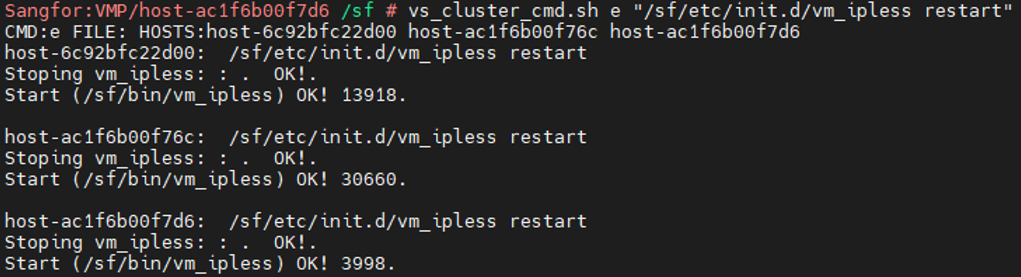
- Try restart the “vm_ipless” process.
Command:vs_cluster_cmd.sh e "/sf/etc/init.d/vm_ipless restart"
- Make sure VMP has enabled agent ipless feature. You can try to modify the following file to change the communication mode of the agent. Modifying the configuration file does not affect VM access, but the VM needs to be restarted to take effect.
Root Cause
The root cause depends on which step is taken to solve the problem
Solution
Follow above steps can solve 99% issue.